
Adding Knowledge Sources

When I’m starting a new research project, I want to import documents and URLs into my workspace, so I can get AI responses grounded in my specific knowledge base.
Introduction
AI assistants are powerful, but their responses are only as good as the context they have access to. Generic knowledge isn’t enough when you’re making decisions about specific technologies, comparing vendor documentation, or analyzing particular code repositories.
Lattice solves this by letting you build a curated knowledge base from URLs, PDFs, and other documents. Once indexed, the AI grounds its responses in your actual sources—complete with citations you can verify.
Step 1: Start from Your Workspace
Begin in your Lattice workspace. The three-panel layout shows your Sources on the left, the Lab chat in the center, and the Studio for artifacts on the right. Any existing indexed documents appear in the Sources panel with their chunk counts.
Step 2: Open the Add Source Menu
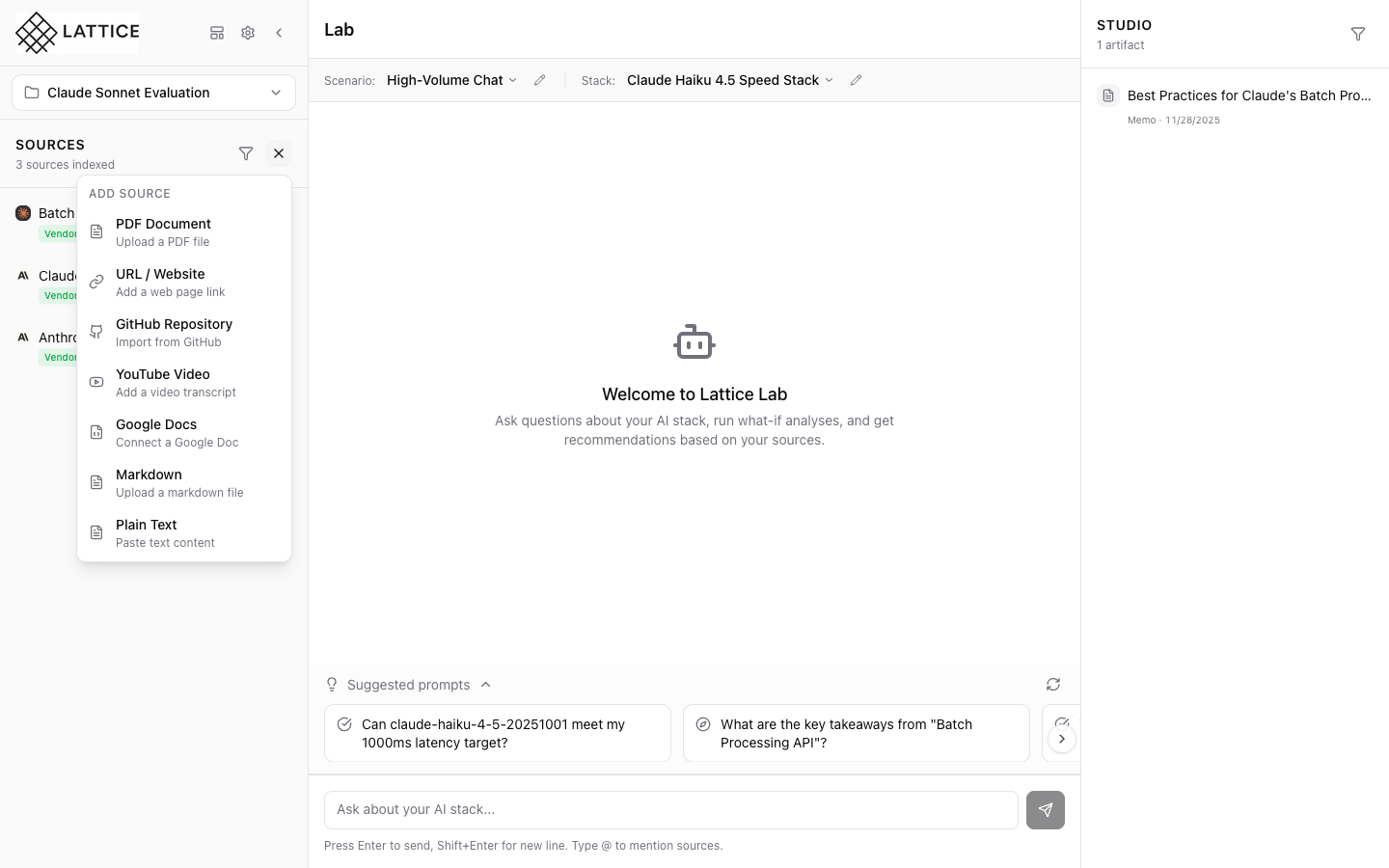
Click the + button in the Sources panel header to reveal the dropdown menu. Lattice supports multiple source types:
- PDF: Upload local PDF documents
- URL: Import web pages and documentation
- GitHub: Connect to repositories
- YouTube: Index video transcripts
- Google Docs: Import from your Drive
Step 3: Select URL Source Type
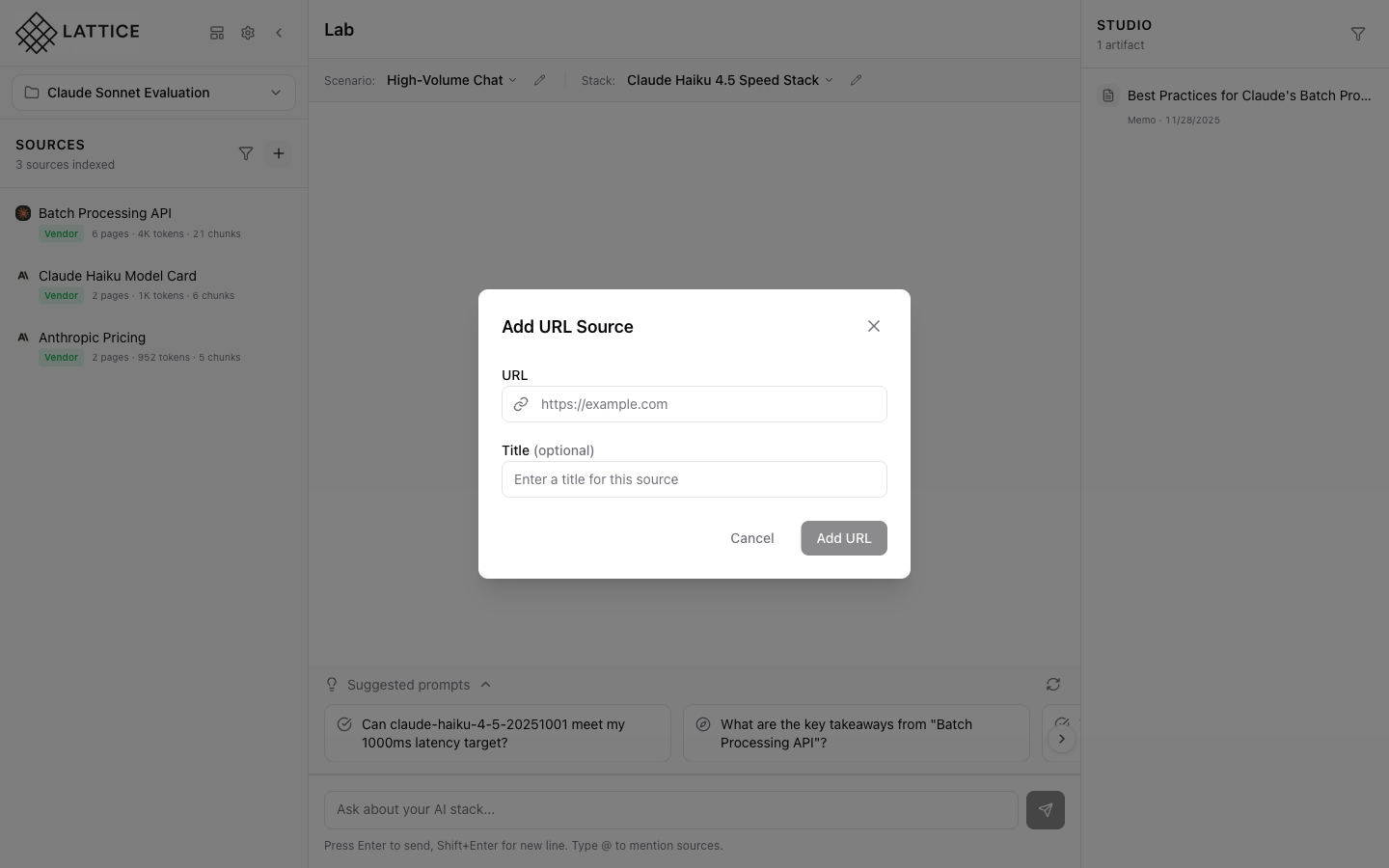
For this example, we’ll add a URL source. Click URL in the dropdown to open the URL source modal. This is perfect for importing technical documentation, blog posts, or any web content you want the AI to reference.
Step 4: Enter the URL
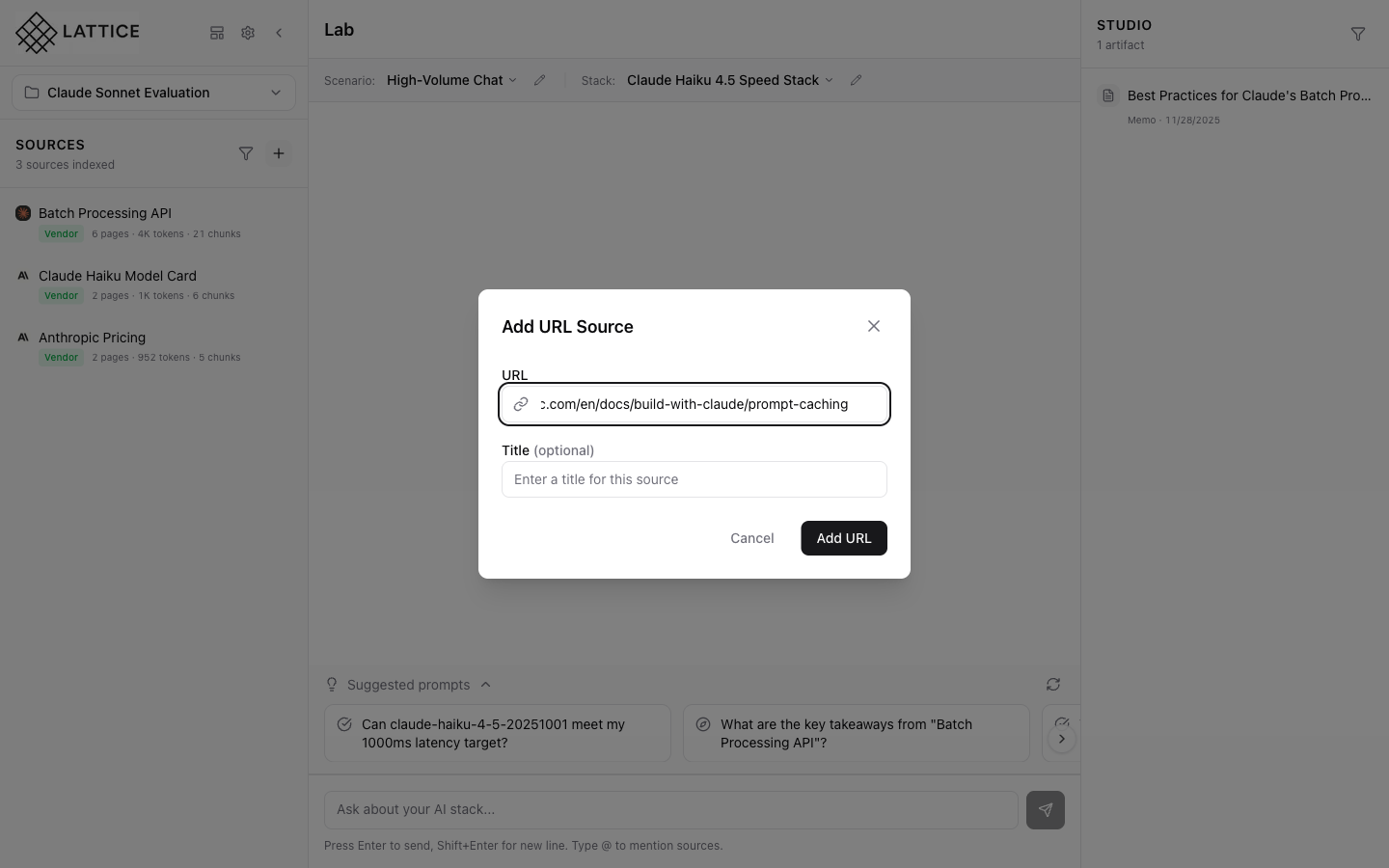
Paste or type the URL you want to index. The modal automatically:
- Validates the URL format
- Fetches the favicon for visual identification
- Shows a preview of the domain
Here we’re adding Anthropic’s prompt caching documentation—a perfect example of technical content that benefits from AI-powered analysis.
Step 5: Source Added and Indexing
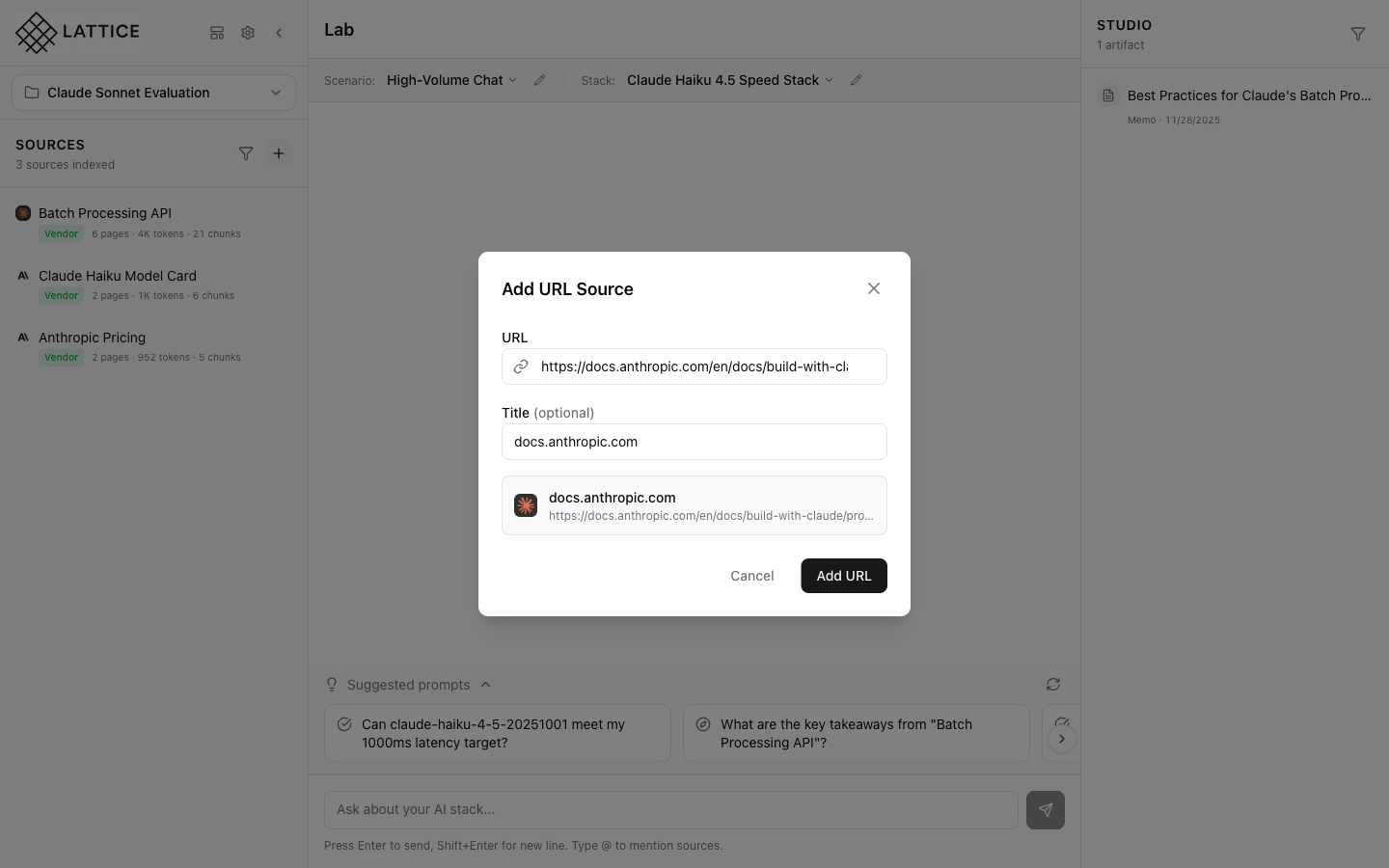
After clicking Add Source, Lattice immediately begins processing your content. The source appears in your panel with an indexing indicator. During this phase, Lattice:
- Fetches the page content
- Extracts the main text
- Chunks it into searchable segments
- Creates embeddings for semantic search
Step 6: Indexing Complete
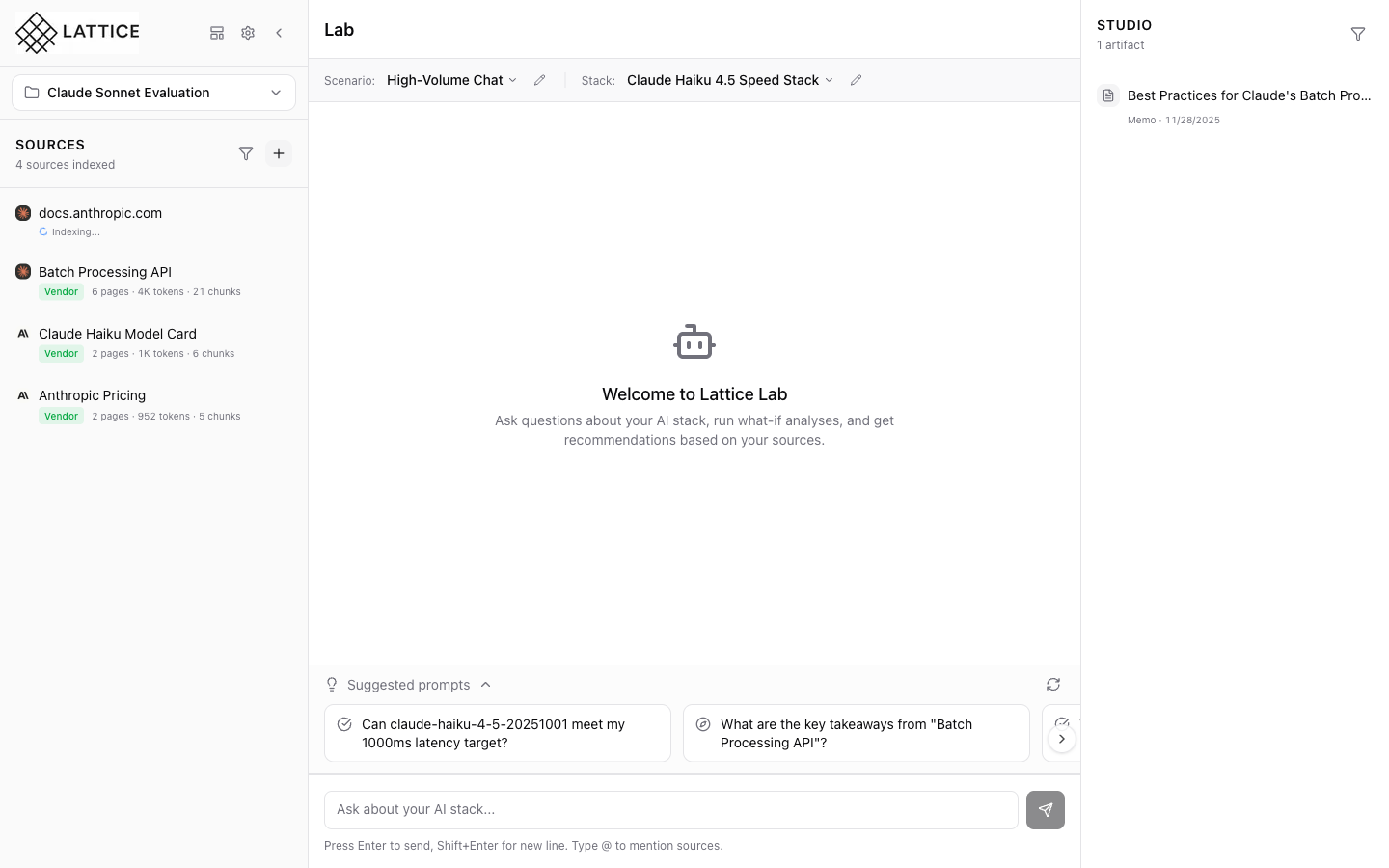
Once indexing finishes, the source displays its chunk count—indicating how much searchable content is now available. The AI can now reference this documentation when answering your questions, providing grounded responses with specific citations.
Conclusion
Adding knowledge sources is the foundation of effective AI-assisted research. By building a curated collection of relevant documents, you transform generic AI responses into contextual, verifiable insights.
Key benefits of source-grounded AI:
- Accuracy: Responses cite specific passages from your documents
- Verifiability: Click citations to see the original context
- Relevance: AI focuses on your curated knowledge, not generic web content
- Currency: Add the latest documentation as it’s published
Start with a few key sources for your current project, then expand as your research deepens. The more relevant context the AI has, the more valuable its responses become.
Ready to Try Lattice?
Get lifetime access to Lattice for confident AI infrastructure decisions.
Get Lattice for $99