
Applying a Blueprint to Your Workspace
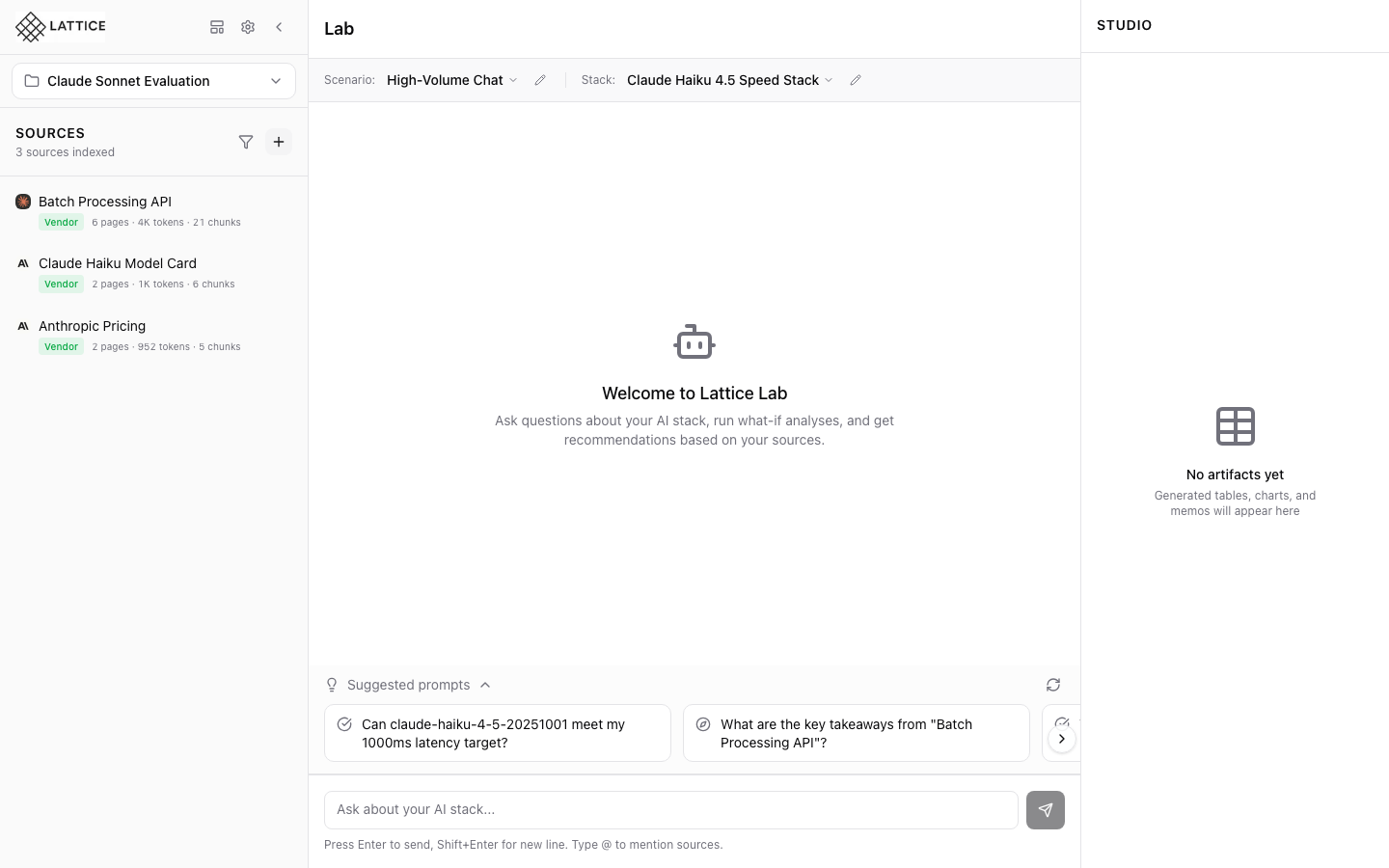
When I find a relevant blueprint, I want to apply it to my workspace, so I can instantly have curated sources and configurations ready for research.
Introduction
Once you’ve found a blueprint that matches your research needs, applying it takes just one click. Lattice imports all the blueprint’s sources, scenarios, and stack configurations directly into your workspace—saving hours of manual setup.
The Apply Process
When you apply a blueprint, Lattice:
- Imports Sources — All curated URLs, documentation links, and vendor pages are added to your Sources panel
- Creates Scenarios — Pre-configured workload definitions with SLOs, budget, and compliance settings
- Adds Stacks — Recommended model and infrastructure configurations
- Begins Indexing — Source content is automatically fetched and embedded for search
What Gets Imported
A typical blueprint includes:
- 3-6 Sources: Official vendor documentation, pricing pages, model cards, and technical guides
- 1-2 Scenarios: Workload configurations like “High-Volume Chat” or “Enterprise RAG”
- 1-2 Stacks: Model configurations like “Claude Haiku 4.5 Speed Stack”
After Applying
Once applied, your workspace is immediately ready for research:
- Sources appear in the Sources panel with indexing progress
- Scenarios are available in the Scenarios dropdown
- Stacks can be selected for recommendations
- Suggested prompts update to reflect the new context
You can modify any imported configuration—blueprints are a starting point, not a constraint.
Next steps: Start chatting in the Lab to get grounded recommendations from your new sources.
Ready to Try Lattice?
Get lifetime access to Lattice for confident AI infrastructure decisions.
Get Lattice for $99