
Ask About Selected Text: Deep Dive into Source Content
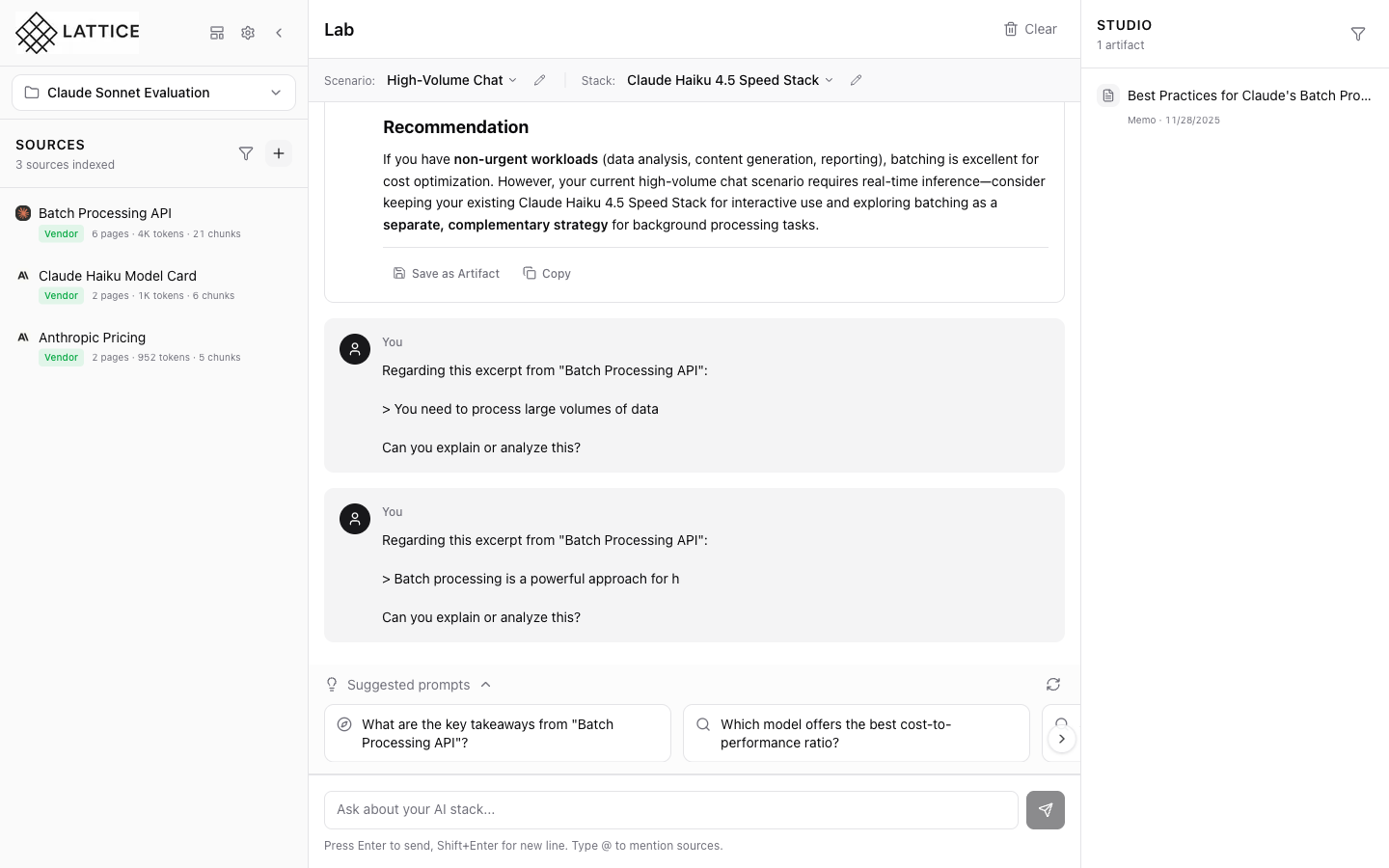
When I’m reading through indexed source documents, I want to select specific passages and ask questions about them, so I can get contextual AI explanations without losing my place or retyping the content.
Introduction
When researching AI infrastructure decisions, you often encounter dense technical documentation. A batch processing API guide might explain concepts you need clarified, or a pricing page might have specific terms you want the AI to analyze in context.
Lattice’s Reader Modal provides an immersive reading experience with a powerful text selection feature: highlight any passage and instantly send it to the AI for explanation, analysis, or discussion—all without leaving your reading flow.
Step 1: Open Your Workspace with Indexed Sources
Start from your workspace with sources already indexed. The Sources panel on the left shows your documents with their indexing status—chunk counts indicate how much content is available for AI-grounded responses.
Step 2: Access Source Actions
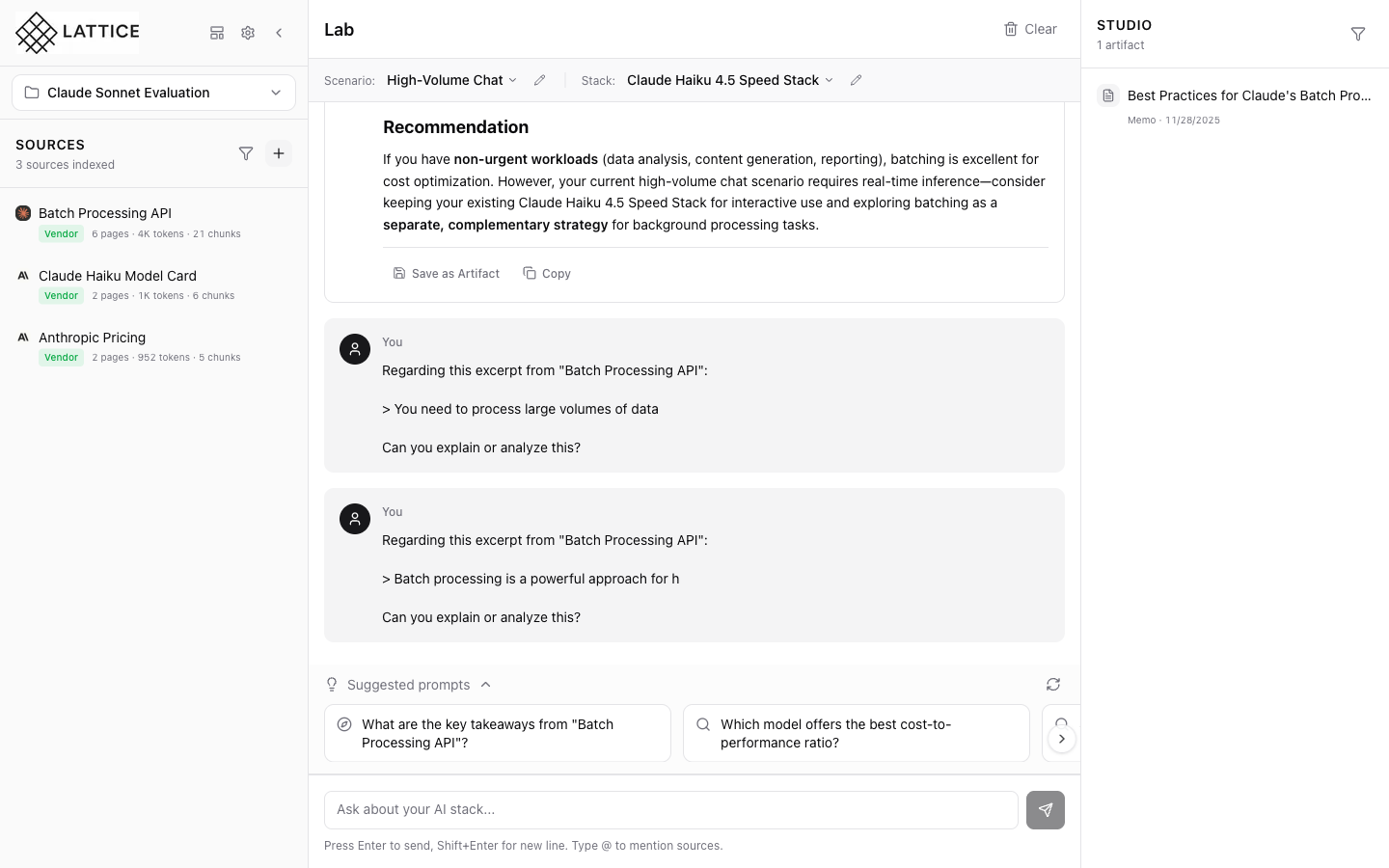
Each source in your workspace has quick action buttons that appear on hover. The Read button opens the full document in an immersive slide-over reader panel.
Step 3: Open the Reader Modal
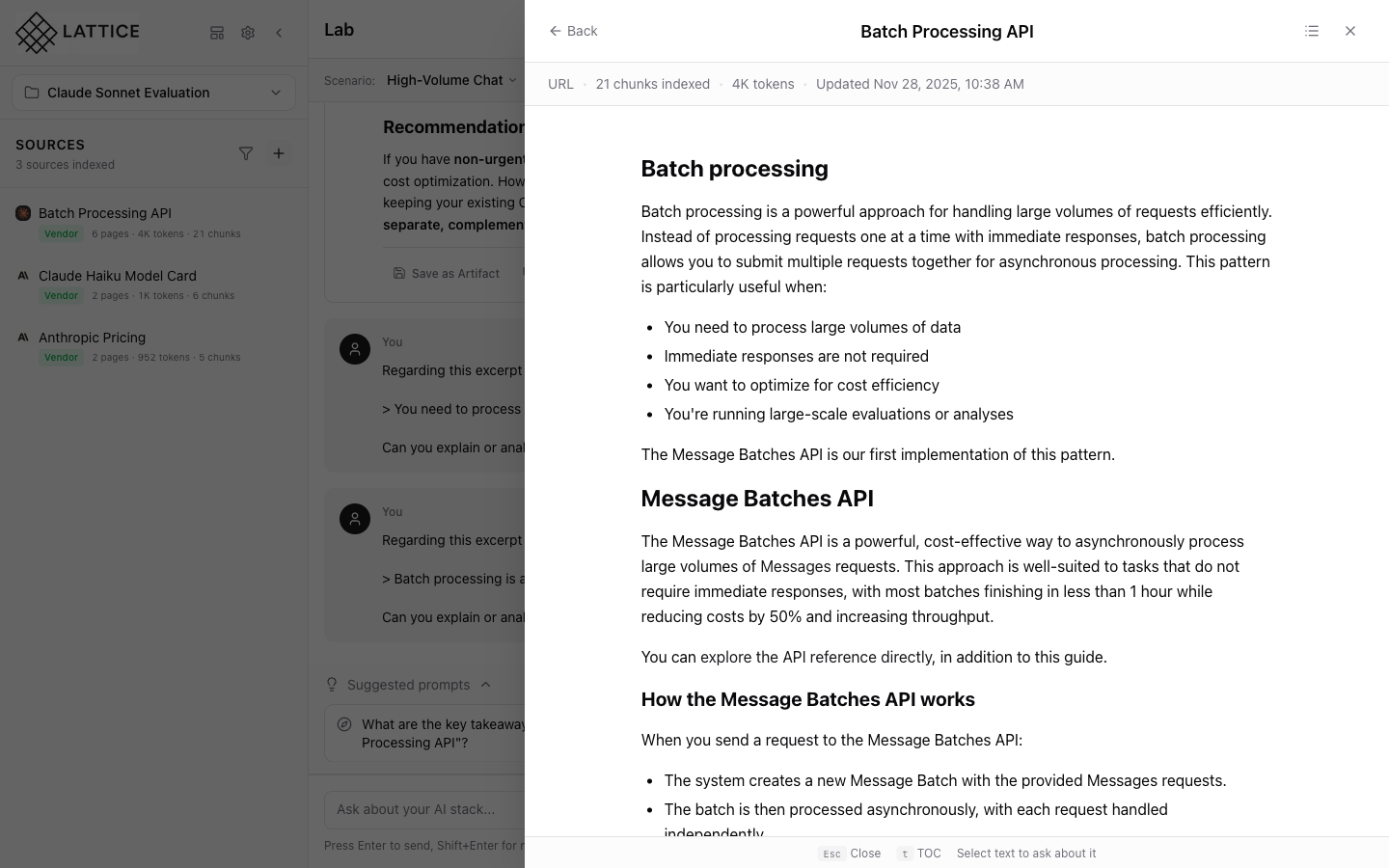
The Reader Modal slides in from the right, displaying the full content of your source document with comfortable reading typography. Metadata at the top shows the source type, chunk count, token estimate, and last update time.
Notice the keyboard hints at the bottom: press Esc to close, t to toggle the table of contents, or select text to ask about it.
Step 4: Select Text and See the Popover
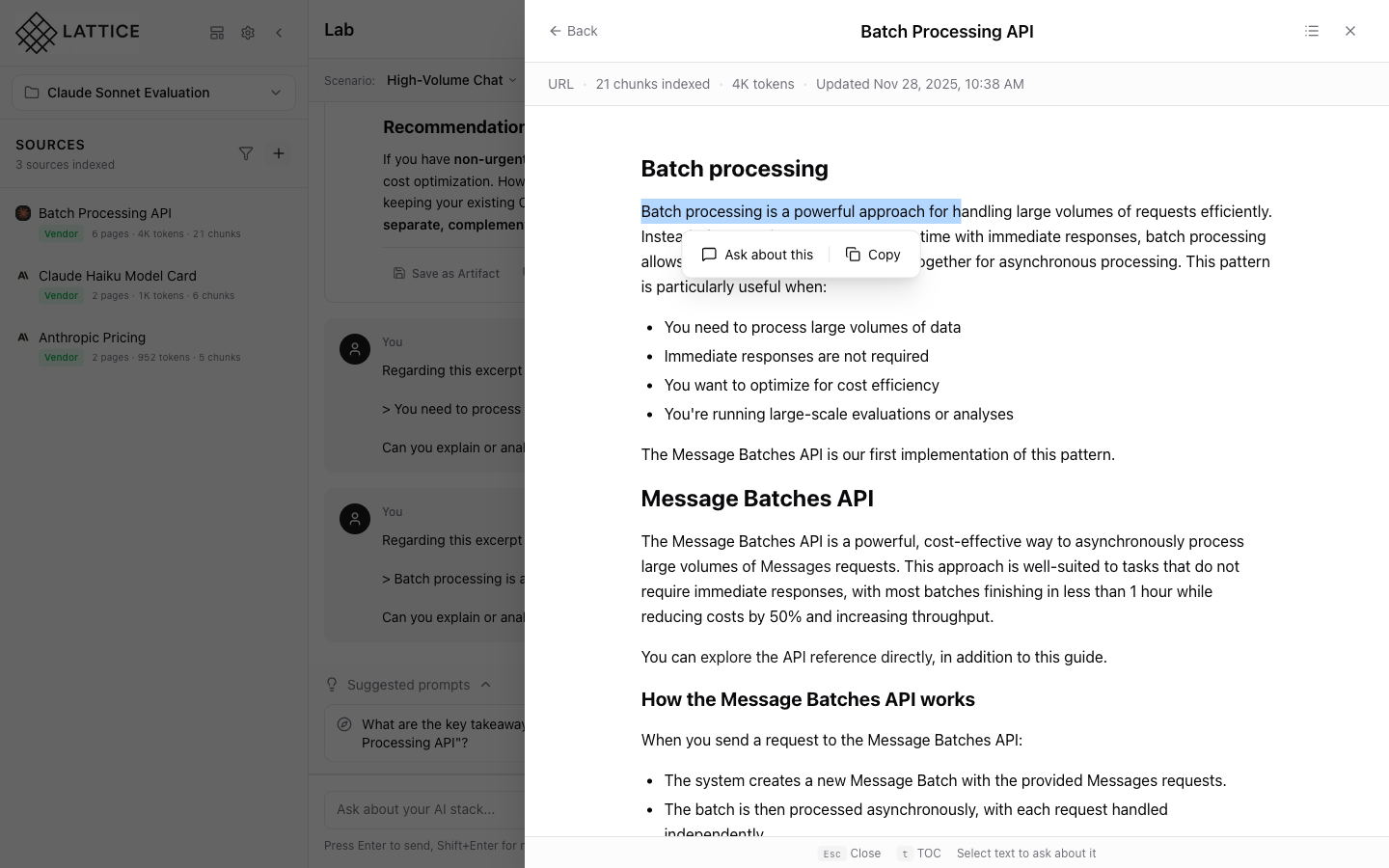
Click and drag to select any passage in the document. A popover immediately appears with two options:
- Ask about this: Send the selected text to the chat for AI analysis
- Copy: Copy the text with source attribution to your clipboard
The text selection remains highlighted while the popover is active, so you can see exactly what you’ve selected.
Step 5: Send to Chat
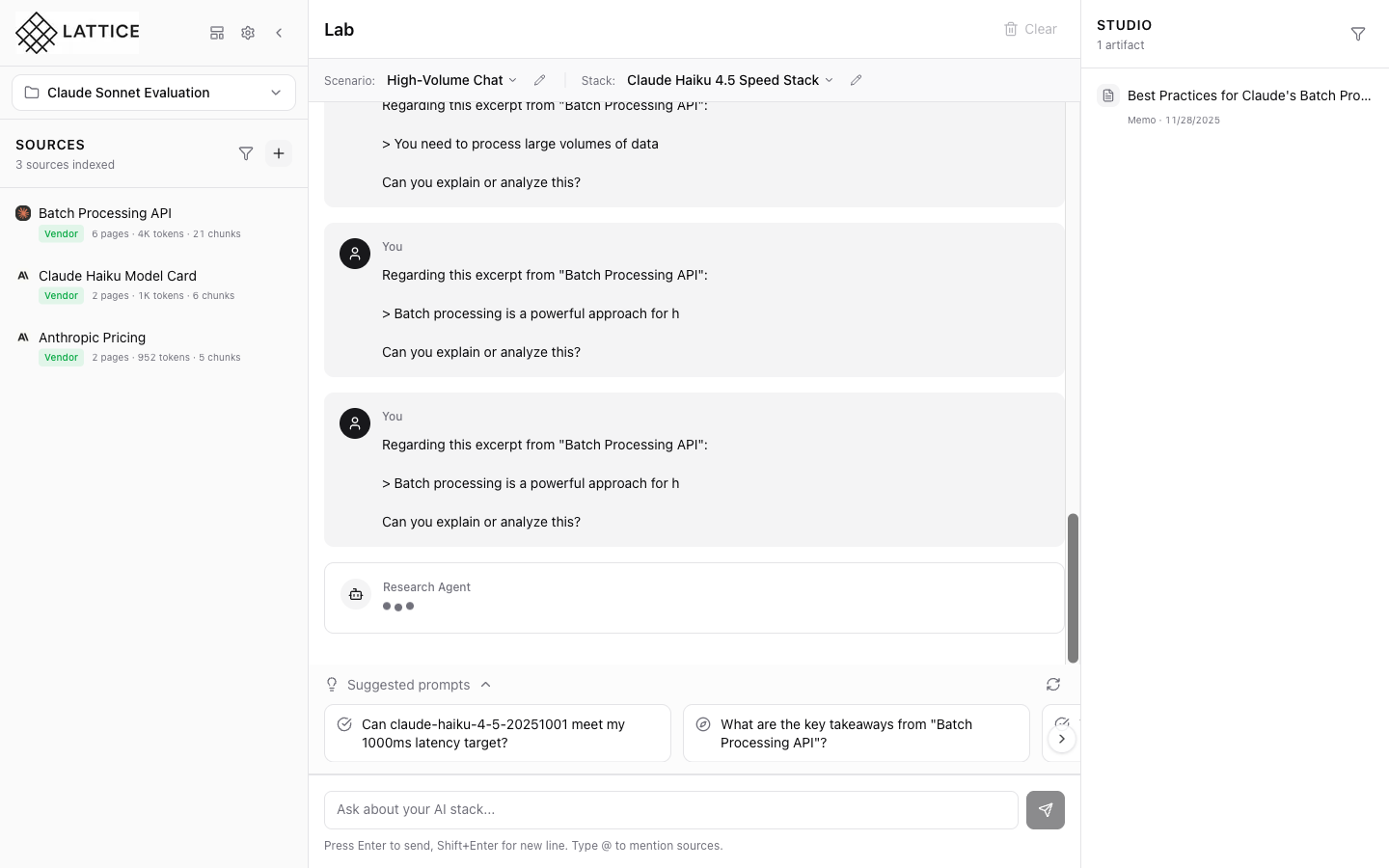
Click “Ask about this” to send the selected passage directly to the Lab chat. The selected text is automatically formatted as a quote in your message, providing clear context for your question.
Step 6: Continue Your Research
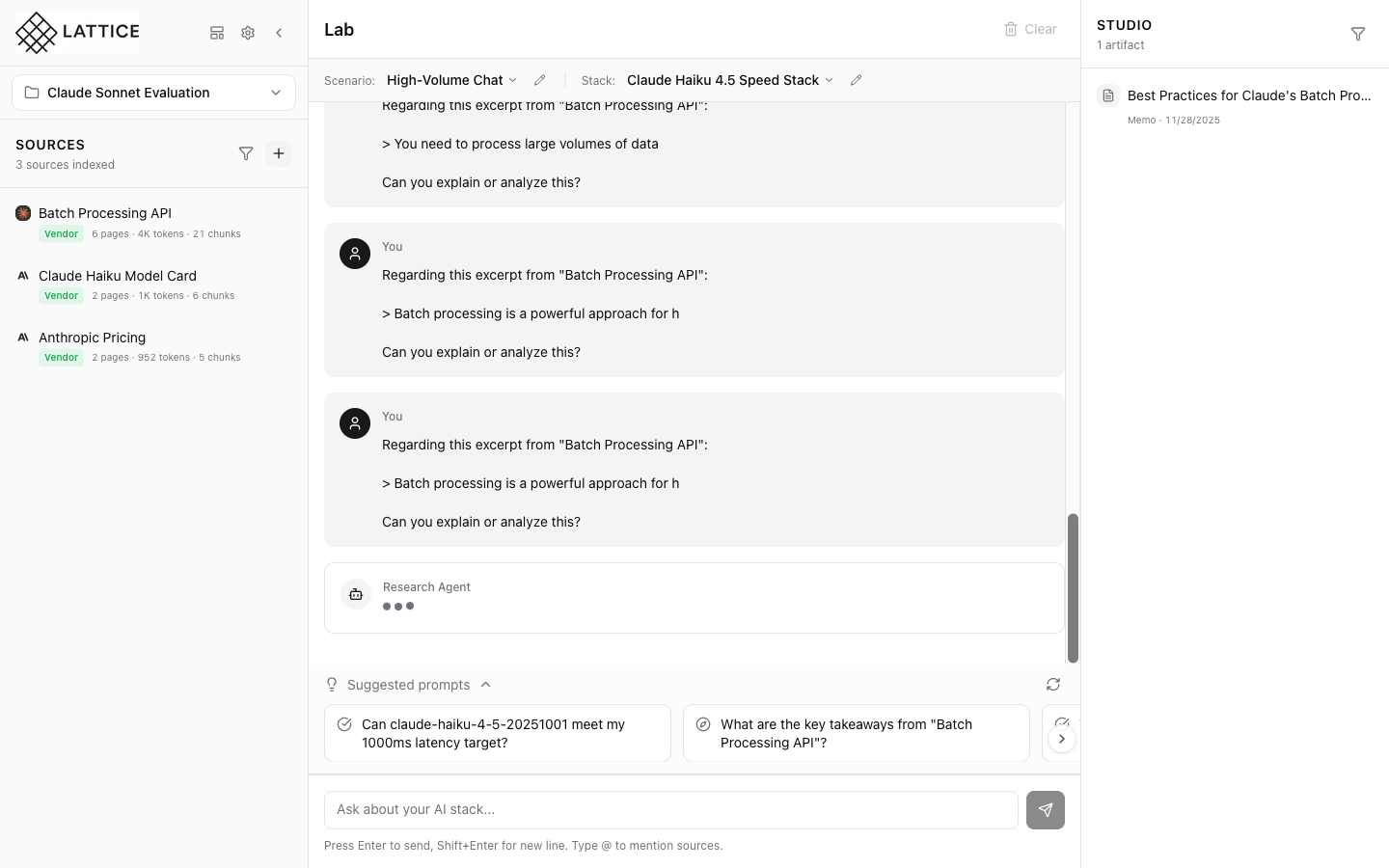
Press Esc to close the Reader Modal and return to your main workspace. Your question is ready in the chat, and you can add any follow-up context before sending to the AI.
What You’ve Accomplished
The “Ask About Selected Text” feature bridges the gap between reading and researching. Instead of copying passages, switching contexts, and manually formatting questions, you can stay in your reading flow and instantly get AI-powered explanations for any content that catches your attention.
This is particularly valuable when:
- Reading technical documentation with unfamiliar concepts
- Analyzing pricing or SLA terms that need clarification
- Reviewing API specifications with complex parameters
- Studying model comparison charts that need interpretation
The feature works with any indexed source—URLs, PDFs, or markdown documents—making it a universal tool for AI-assisted research.
Ready to Try Lattice?
Get lifetime access to Lattice for confident AI infrastructure decisions.
Get Lattice for $99