
Browsing the Blueprint Gallery
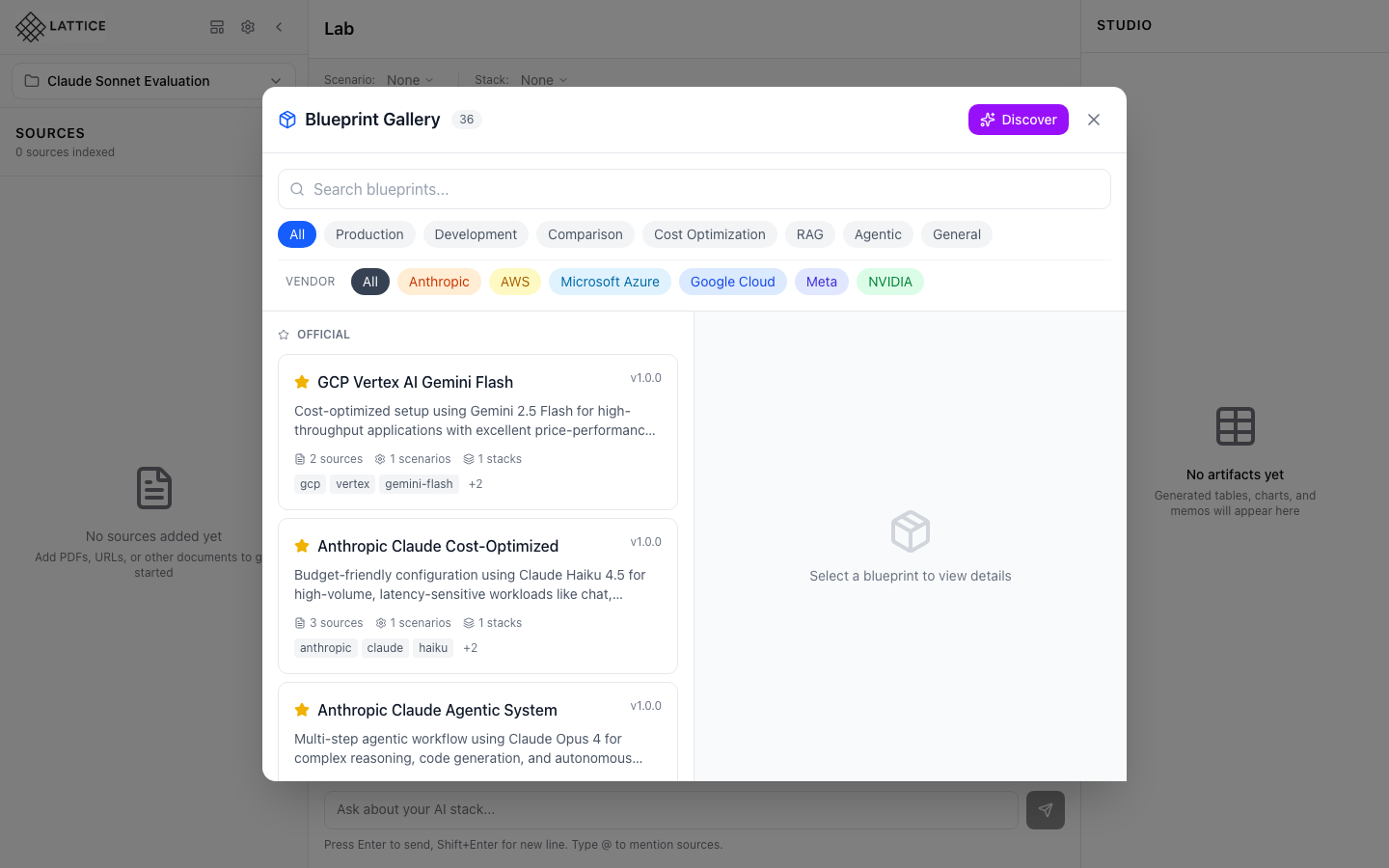
When I start researching a new AI infrastructure topic, I want to browse pre-built knowledge bundles, so I can quickly gather relevant documentation without manual source collection.
Introduction
Blueprints are curated knowledge bundles that give you a head start on common AI infrastructure research. Instead of manually gathering documentation for every vendor and framework, blueprints pre-package sources, scenarios, and stack configurations from leading AI providers.
Whether you’re evaluating Claude for production, comparing fine-tuning frameworks, or building RAG pipelines, there’s likely a blueprint that matches your needs. This journey shows you how to explore what’s available.
Step 1: Open the Blueprint Gallery

From the main Lattice interface, click the blueprints icon (grid/template icon) in the sidebar header, next to the settings gear. This opens the Blueprint Gallery modal.
Step 2: Explore Available Blueprints
The Blueprint Gallery opens with 36 curated blueprints organized by category and vendor:
Category Filters (top row):
- All, Production, Development, Comparison, Cost Optimization, RAG, Agentic, General
Vendor Chips (colored badges):
- Anthropic (orange), AWS (yellow), Microsoft Azure (sky), Google Cloud (blue), Meta (indigo), NVIDIA (green)
Blueprint Cards show at a glance:
- Name and version (e.g., “Anthropic Claude Cost-Optimized v1.0.0”)
- Description of the use case
- Contents: sources, scenarios, and stacks count
- Tags for quick filtering
The “Discover” button (top right, with sparkles icon) launches AI-powered blueprint generation for custom topics.
Step 3: View Blueprint Details

Click any blueprint to see its full contents in the detail panel:
Header: Name, version, author, and description
Sources (3): Pre-selected documentation URLs
- Anthropic Pricing (url)
- Claude Haiku Model Card (url)
- Batch Processing API (url)
Scenarios (1): Pre-configured workload definitions
- “High-Volume Chat” — P95 under 1000ms, $2000/mo budget
Stacks (1): Recommended model configurations
- “Claude Haiku 4.5 Speed Stack” marked as default
The “Refresh” button validates that all source URLs are still accessible. The “Apply to Workspace” button adds all sources, scenarios, and stacks to your current workspace in one click.
What You’ve Accomplished
You’ve explored Lattice’s Blueprint Gallery and seen how blueprints package vendor documentation, research scenarios, and stack configurations. Key features include:
- Vendor-curated bundles — Official documentation from Anthropic, NVIDIA, AWS, and more
- Category filters — Production, Development, RAG, Agentic, Cost Optimization
- One-click apply — Instantly populate your workspace with sources and scenarios
- URL validation — Verify blueprint sources are still accessible
Next steps: Apply a blueprint to your workspace to get started with pre-configured research context.
Ready to Try Lattice?
Get lifetime access to Lattice for confident AI infrastructure decisions.
Get Lattice for $99