
Creating a Scenario
When I have specific workload requirements, I want to create a scenario, so I can get stack recommendations that match my constraints.
Introduction
Requirements sprawl is a constant battle for research engineers. You know your constraints—latency, budget, compliance—but they exist in fragments across documents, conversations, and memories. When it’s time to evaluate infrastructure options, you reconstruct these requirements from scratch.
Scenarios are Lattice’s answer to requirements fragmentation. A scenario captures everything about your AI workload: what kind of work it does, how it needs to perform, and what constraints apply. Once defined, your scenario becomes context for everything else—the Research Agent uses it when recommending models, and stack suggestions account for your compliance requirements.
Step 1: Open the Template Chooser
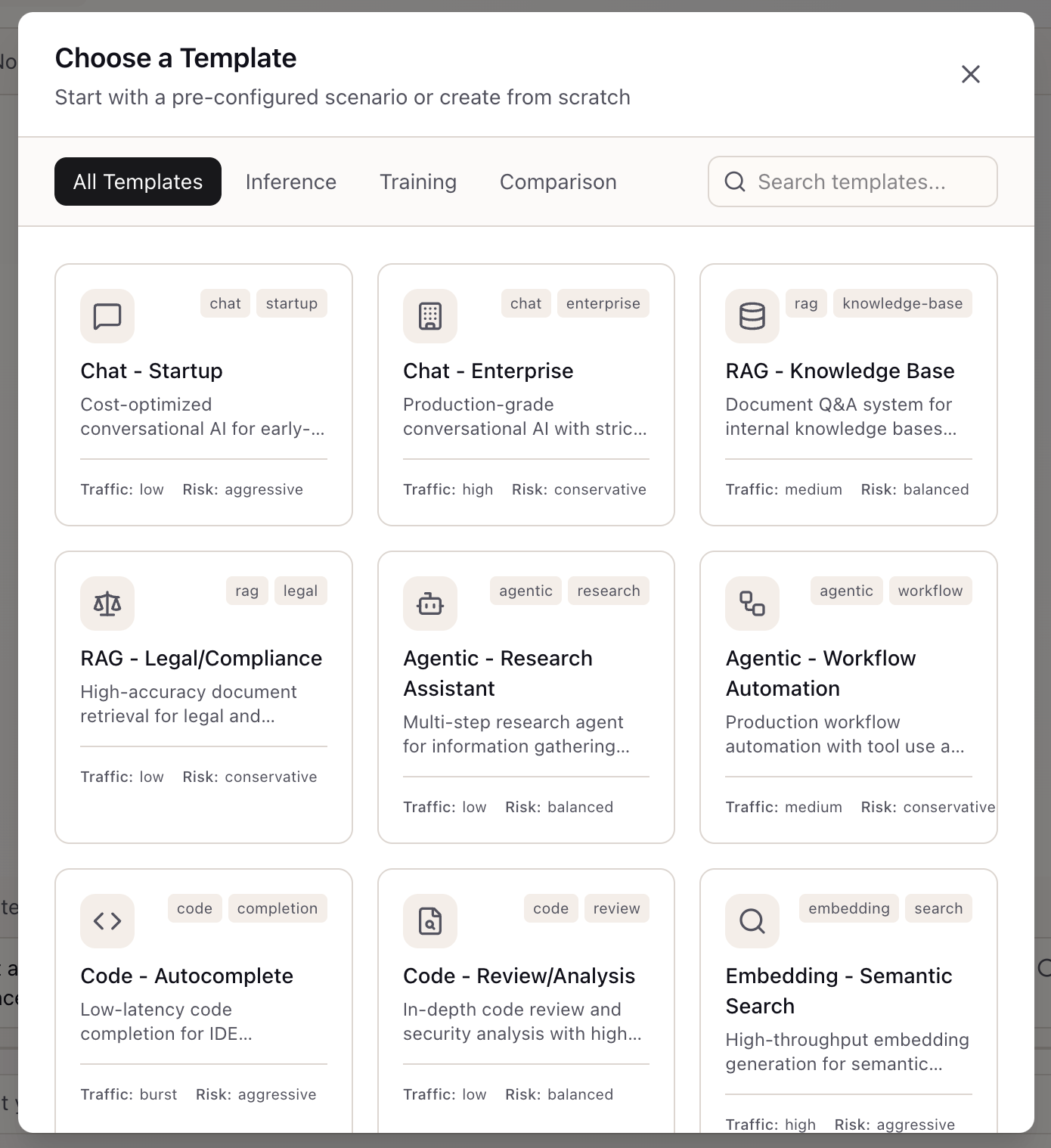
Access scenario creation through the Context Bar in the Lab panel. Click ”+ New scenario” to open the template chooser. The modal displays templates organized by category tabs: All Templates, Inference, Training, and Comparison.
Each template card shows:
- Template name and description: What workload it’s designed for
- Tags: Category indicators (chat, rag, agentic, code, embedding)
- Traffic profile: Expected request volume (low, medium, high, burst)
- Risk profile: Stability preference (conservative, balanced, aggressive)
Inference Templates cover the common AI workloads:
- Chat - Startup: Cost-optimized conversational AI for early-stage projects
- Chat - Enterprise: Production-grade with strict SLOs
- RAG - Knowledge Base: Document Q&A with medium throughput
- RAG - Legal/Compliance: High-accuracy retrieval for regulated industries
- Agentic - Research Assistant: Multi-step research with balanced settings
- Agentic - Workflow Automation: Production workflow with tool use
- Code - Autocomplete: Low-latency completion for IDEs
- Embedding - Semantic Search: High-throughput embedding generation
Step 2: Explore Training Templates
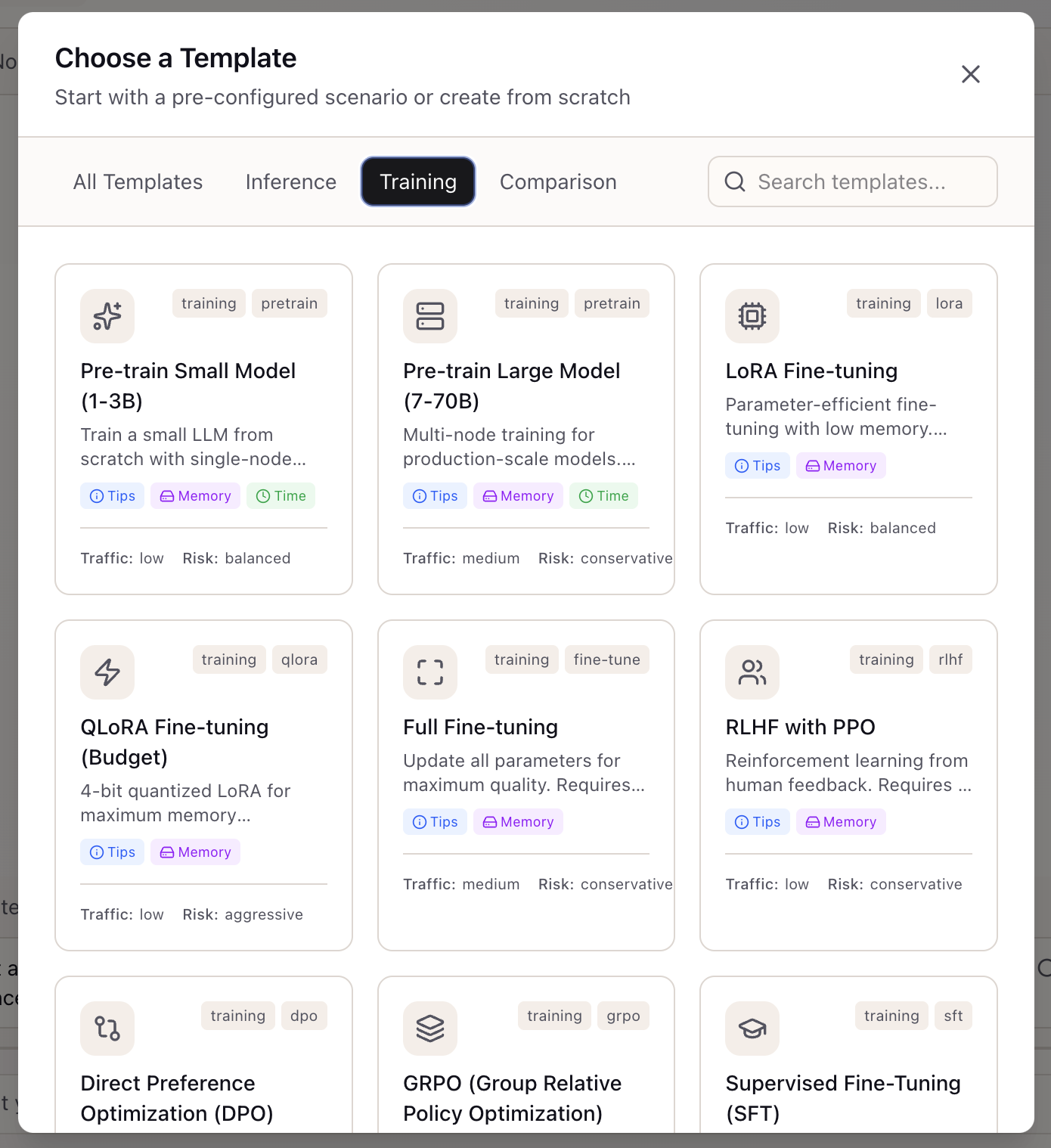
Click the Training tab to see templates for model training workloads. Training templates include helpful badges:
- Tips: Best practices for this training type
- Memory: GPU memory requirements
- Time: Expected training duration
Training Templates:
- Pre-train Small Model (1-3B): Single-node training from scratch
- Pre-train Large Model (7-70B): Multi-node training for production-scale models
- LoRA Fine-tuning: Parameter-efficient fine-tuning with low memory requirements
- QLoRA Fine-tuning (Budget): 4-bit quantized LoRA for maximum memory efficiency
- Full Fine-tuning: Update all parameters for maximum quality
- RLHF with PPO: Reinforcement learning from human feedback
- Direct Preference Optimization (DPO): Simpler alternative to RLHF
- GRPO: DeepSeek’s efficient alternative to PPO
- Supervised Fine-Tuning (SFT): Instruction tuning with supervised examples
Step 3: Select Your Template
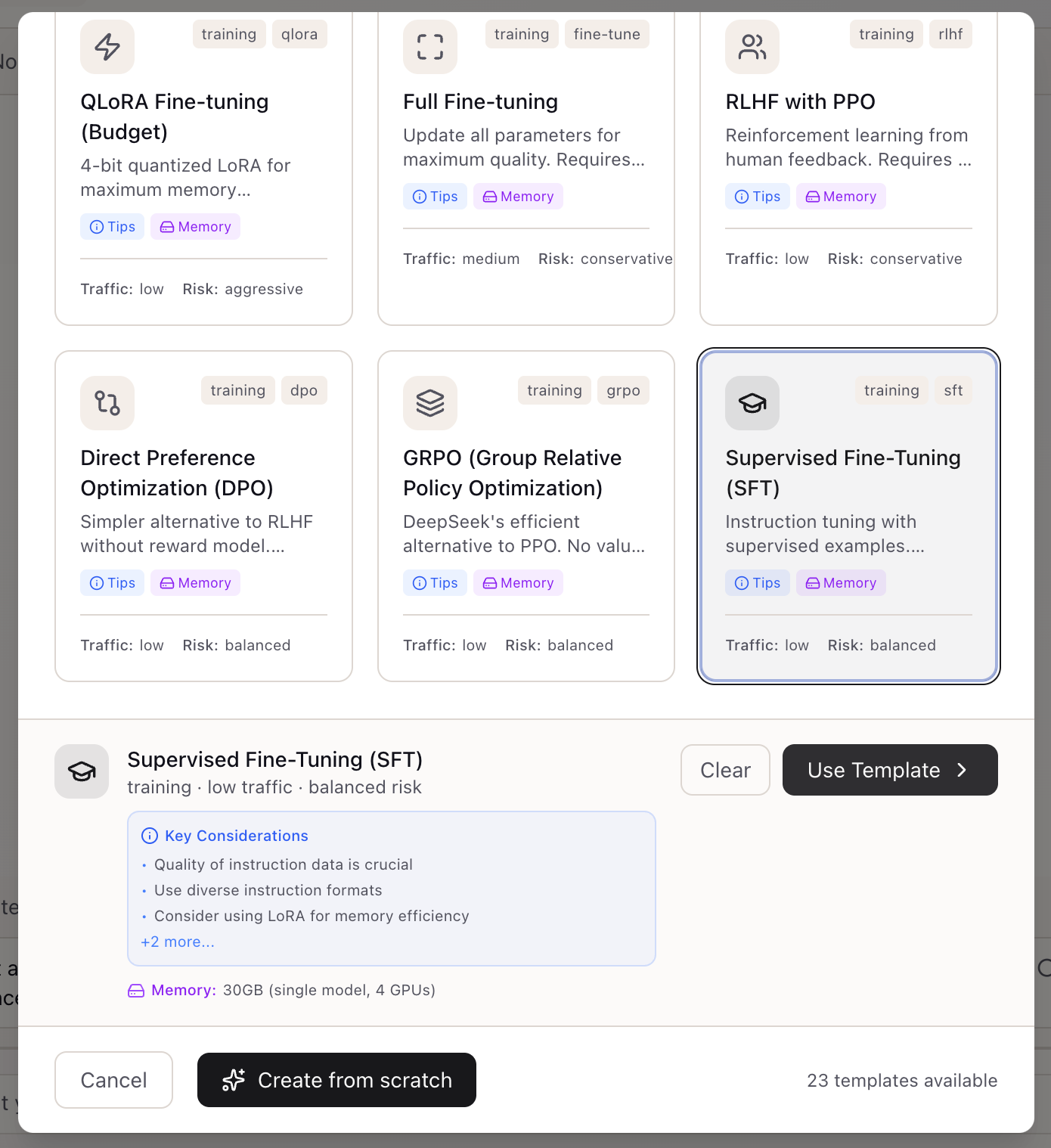
Click a template to select it. A preview panel appears at the bottom showing:
- Template summary: Name, traffic level, and risk profile
- Key Considerations: Important tips for this workload type
- Memory estimate: GPU memory requirements
For the Supervised Fine-Tuning (SFT) template, key considerations include:
- Quality of instruction data is crucial
- Use diverse instruction formats
- Consider using LoRA for memory efficiency
Click “Use Template” to proceed with the selected template, or “Create from scratch” to start with a blank scenario.
Step 4: Configure Training Settings
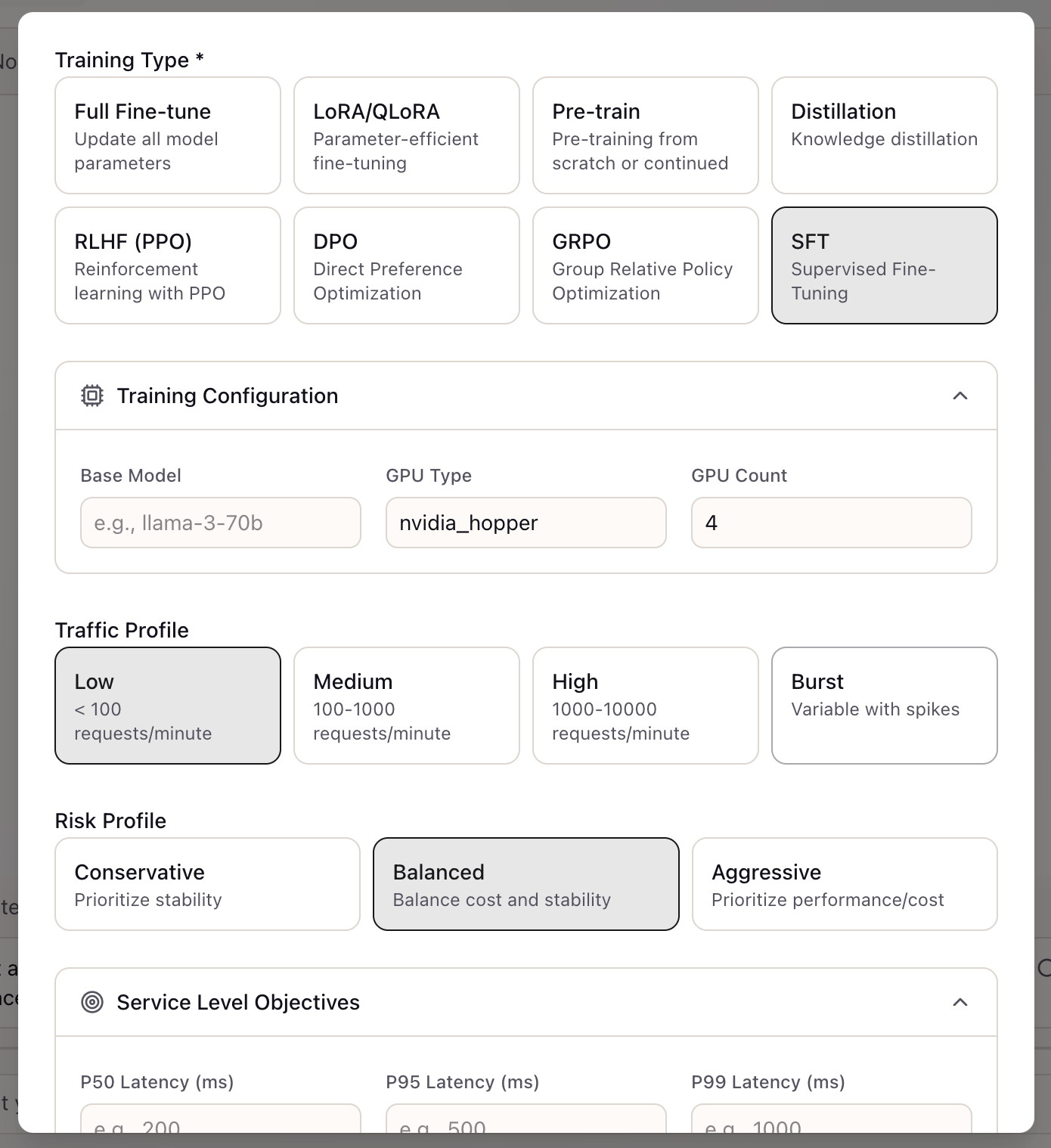
After selecting a template, the configuration form opens with pre-filled values. For training scenarios, configure:
Training Type: Select the specific training approach:
- Full Fine-tune, LoRA/QLoRA, Pre-train, Distillation
- RLHF (PPO), DPO, GRPO, SFT
Training Configuration:
- Base Model: The model you’re fine-tuning (e.g., llama-3-70b)
- GPU Type: Hardware selection (nvidia_hopper, nvidia_ampere)
- GPU Count: Number of GPUs for training
Traffic Profile: Expected training job frequency:
- Low: < 100 requests/minute
- Medium: 100-1000 requests/minute
- High: 1000-10000 requests/minute
- Burst: Variable with spikes
Risk Profile: How aggressively to optimize:
- Conservative: Prioritize stability
- Balanced: Balance cost and stability
- Aggressive: Prioritize performance/cost
Step 5: Set SLOs and Budget
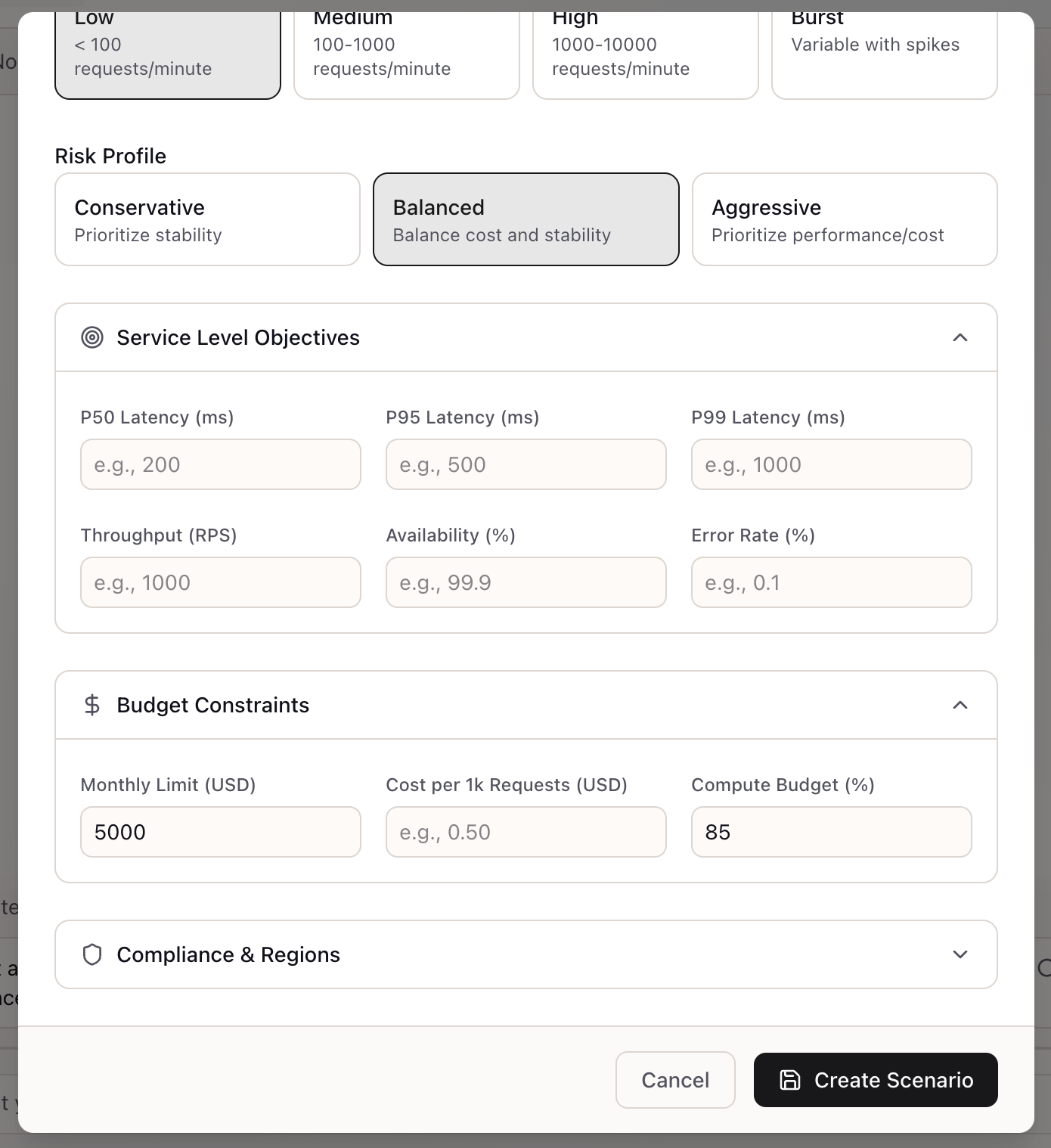
Scroll down to configure performance and cost constraints:
Service Level Objectives:
- P50/P95/P99 Latency (ms): Response time percentiles
- Throughput (RPS): Requests per second target
- Availability (%): Uptime requirement (e.g., 99.9%)
- Error Rate (%): Maximum acceptable error rate
Budget Constraints:
- Monthly Limit (USD): Maximum monthly spend
- Cost per 1k Requests (USD): Per-request cost target
- Compute Budget (%): Percentage of budget allocated to compute
Compliance & Regions: Expand to configure data residency and compliance requirements.
Step 6: Your Scenario is Ready
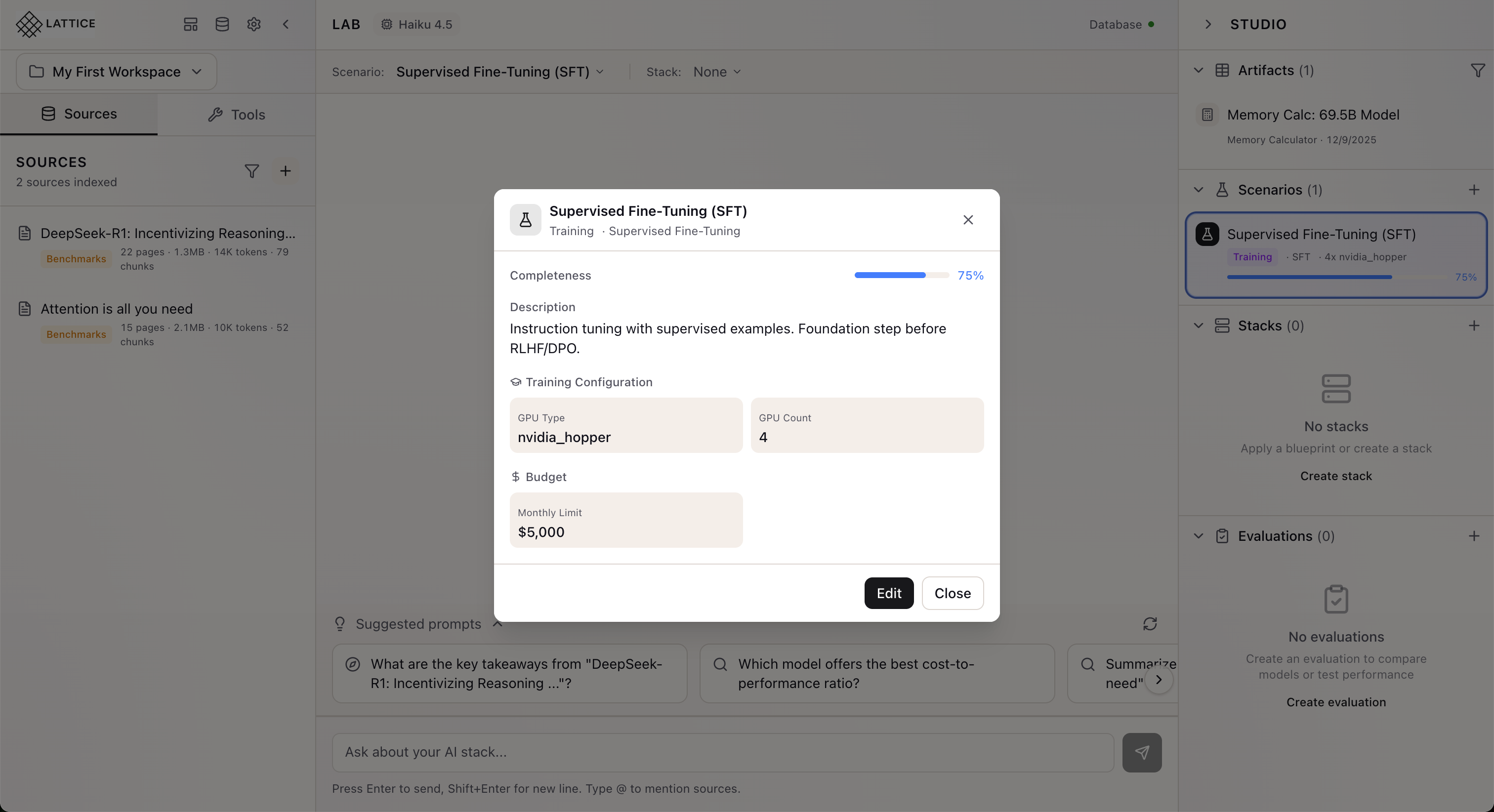
Click “Create Scenario” to save. Your scenario appears in the Studio panel showing:
- Scenario name and type: “Supervised Fine-Tuning (SFT)” with Training badge
- Configuration summary: Training type, GPU configuration
- Completeness indicator: Progress toward fully defined scenario
The scenario is now active in your Context Bar and will inform all Research Agent recommendations.
Scenario Configuration Options
Once created, scenarios capture comprehensive workload requirements:
Workload Type
For inference scenarios:
| Type | Description | Typical SLOs |
|---|---|---|
| chat | Conversational AI | P95 < 500ms |
| rag | Document Q&A | P95 < 1s |
| agentic | Multi-step agents | P95 < 2s |
| code | Code generation | P95 < 1s |
| embedding | Vector embeddings | P95 < 200ms |
| batch | Offline processing | P95 < 30s |
Performance SLOs
Define your service level objectives:
- P50/P95/P99 Latency: Response time percentiles
- Throughput: Requests per second
- Availability: Uptime percentage (99.9% = 8.76 hours downtime/year)
Budget Constraints
- Monthly limit: For ongoing inference costs
- Total budget: For training or one-time costs
Compliance Requirements
- Certifications: SOC2, HIPAA, GDPR, FedRAMP
- Data residency: Required regions for data storage
- Region restrictions: Allowed deployment regions
Risk Profile
- Conservative: Favors proven, stable options
- Balanced: Default settings
- Aggressive: Willing to try newer approaches for potential gains
Using Scenarios
Once created, scenarios integrate throughout Lattice:
Context Bar: Your active scenario appears in the Context Bar, informing all chat interactions.
Smart Prompts: Suggested prompts adapt based on your scenario—a high-volume chat scenario gets latency-focused suggestions.
Stack Suggestions: When you ask for recommendations, the agent filters options that meet your scenario’s constraints.
Cost Projections: Budget calculations use your scenario’s monthly limits and traffic profiles.
Real-World Examples
Production chatbot project: Create a “Customer Support Chat” scenario with P95 < 500ms, 99.9% availability, and $5,000/month budget. When you ask “What model should I use?”, the agent suggests options that fit these constraints.
Training infrastructure evaluation: Create a “Llama Fine-tune” scenario with LoRA training type and $3,000 compute budget. The agent calculates memory requirements based on your specific configuration.
Compliance-driven deployment: Create a scenario with HIPAA certification and US data residency. Non-compliant providers are automatically excluded from recommendations.
What’s Next
Scenarios integrate with Lattice’s expanding intelligence:
- What-If Analysis: Create variations to explore trade-offs
- Document Extraction: Extract requirements from uploaded PRDs
- Stack Suggestions: AI-recommended stacks matching your constraints
- Compatibility Checking: Validate which stacks satisfy which scenarios
Related journeys:
- edit-scenario: Modify existing scenarios as requirements evolve
- select-scenario: Quick-switch between scenarios
- get-stack-suggestion: Get AI recommendations based on your scenario
Scenario Configuration is available in Lattice 0.6.6. Define your requirements once and let Lattice use them everywhere.
Ready to Try Lattice?
Get lifetime access to Lattice for confident AI infrastructure decisions.
Get Lattice for $99