
From Educated Guesses to Data-Driven Trade-offs: The What-If Exploration Journey
When I need to answer “what if we tighten our latency requirements?” or “what if traffic doubles?”, I want to explore parameter changes interactively, so I can see the cost and performance impact immediately without manual calculations.
Introduction
“What if we tighten our P95 latency requirement from 800ms to 400ms?”
For most AI teams, answering this question triggers a cascade of manual work. Someone opens a spreadsheet. Another person digs through pricing documentation. An engineer runs back-of-envelope calculations. Hours later, you have a rough answer—but you’re still not sure if you’ve considered all the implications.
The real problem isn’t the math. It’s that infrastructure decisions involve complex interdependencies: latency targets affect model selection, which affects cost, which affects budget headroom, which affects whether you can afford redundancy for your availability SLOs.
How Lattice Helps
The explore-what-if journey transforms infrastructure planning from a research project into an interactive conversation. Instead of context-switching between calculators and documentation, you adjust parameters in real-time and see the impact immediately.
This isn’t just faster—it enables a fundamentally different way of thinking about infrastructure decisions. You can explore “what if” branches that you’d never bother investigating manually because the effort didn’t seem worth it. You can try extreme scenarios (“what if budget drops 50%?”) to understand your constraints better.
The Explore What-If Journey in Action
Step 1: Start from Your Baseline Scenario
Every what-if exploration begins with context. Navigate to the StudioPanel and find the scenario you want to explore—perhaps “Production RAG Chatbot” with your current P95 latency target of 500ms, throughput of 1,000 requests per second, and monthly budget of $25,000.
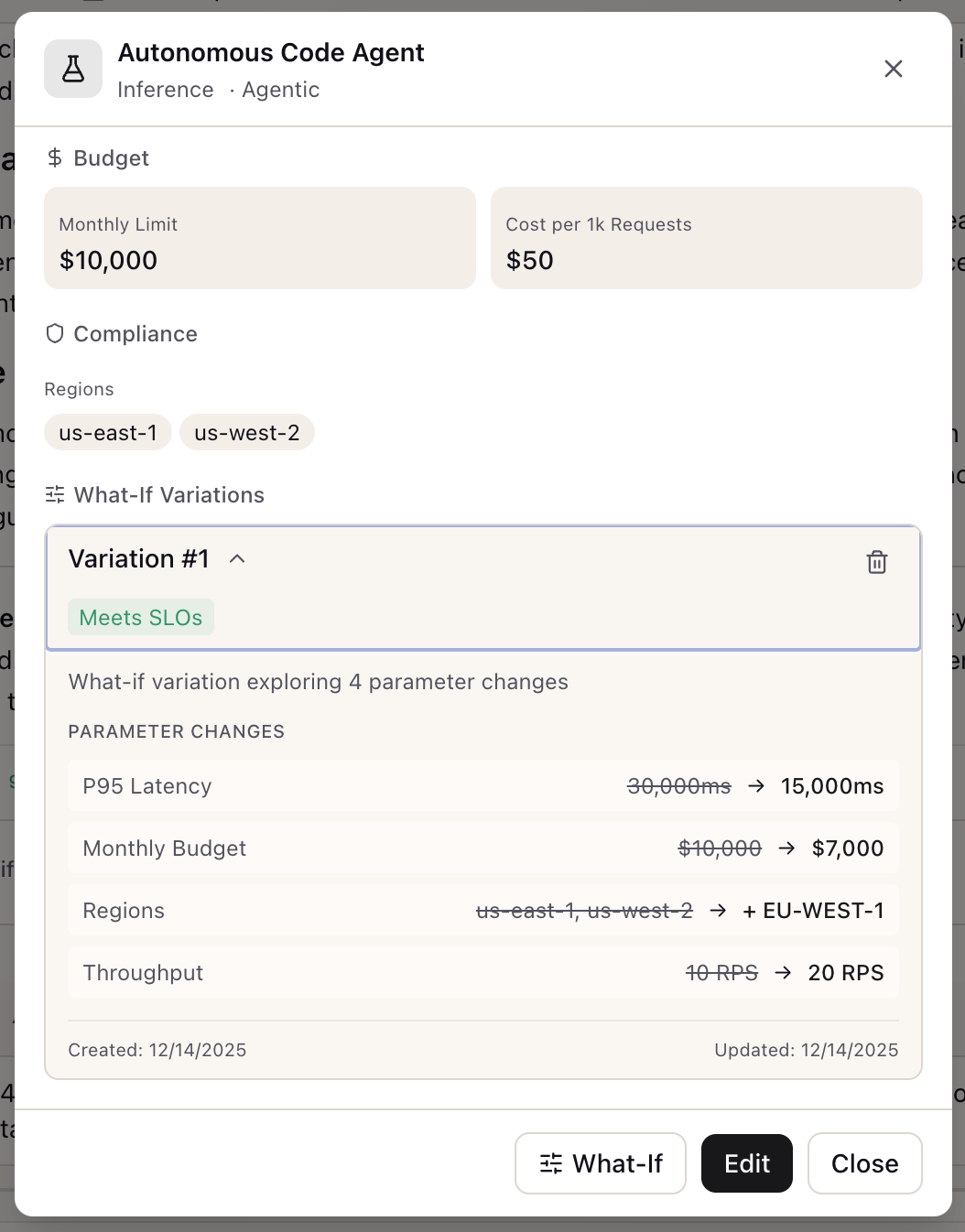
Open the Scenario Detail Modal by clicking on the scenario card. Click the What-If button to open the exploration panel.
Step 2: Use Quick Questions for Common Explorations
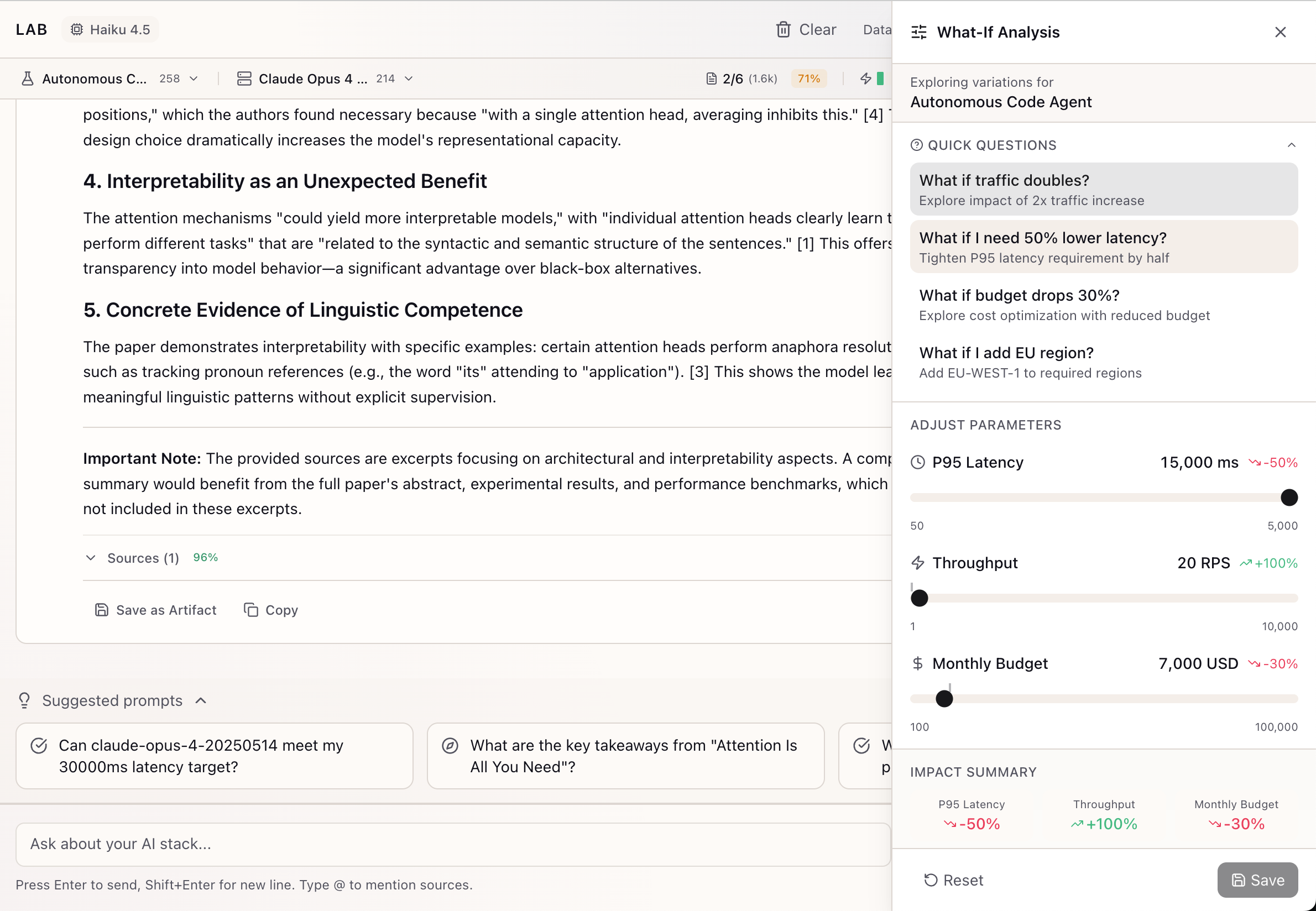
The What-If Panel presents pre-built questions tailored to your workload type. For an inference scenario, you’ll see:
- “What if traffic doubles?” — Instantly multiplies your throughput requirement by 2x
- “What if I need 50% lower latency?” — Tightens your P95 target by half
- “What if budget drops 30%?” — Reduces your monthly limit to stress-test constraints
- “What if I add EU region?” — Adds EU-WEST-1 to your required regions for compliance
Click any question to immediately apply the parameter change. The impact preview updates in real-time.
Step 3: Fine-Tune with Parameter Sliders
Quick questions are starting points. For precise exploration, use the parameter sliders directly.
For Inference Scenarios:
- P95 Latency: Drag from 50ms to 5,000ms in 50ms increments
- Throughput: Adjust from 1 to 10,000 RPS in steps of 10
- Monthly Budget: Slide from $100 to $100,000 in $100 increments
Each slider shows a marker at your baseline value, so you always know how far you’ve deviated. As you drag, the impact percentages update immediately—no waiting, no page refreshes.
Step 4: Read the Impact Summary
The bottom of the What-If Panel displays an aggregated impact summary that makes trade-offs concrete:
Impact Summary-----------------------------------Cost: +12% ($28,000/mo to $31,360/mo)Latency: -40% (500ms to 300ms)-----------------------------------Status: Meets all requirementsVisual indicators help you scan quickly:
- Green up arrow (+X%): Value increased from baseline
- Red down arrow (-X%): Value decreased from baseline
When a configuration violates your constraints—exceeding budget or missing SLO targets—the status indicator turns red with specific details.
Step 5: Save Variations for Later Comparison
When you find a configuration worth preserving, save it as a named variation:
- Enter a descriptive name: “Tighter Latency for Premium Tier”
- Add an optional description: “Exploring 300ms P95 for enterprise customers”
- Click Save Variation
The variation is stored with your scenario—you haven’t modified the baseline. You might save:
- “Black Friday 3x Traffic” — Your traffic spike configuration
- “Budget Crunch Q2” — What you can deliver with a 25% budget cut
- “Enterprise SLA” — The premium tier with tighter latency guarantees
Step 6: Apply Changes (When Ready)
If you’ve found the configuration you want to commit to, click Apply to Scenario to update your baseline directly. Most users save variations first, then apply only after reviewing with stakeholders or comparing alternatives.
Real-World Scenarios
The Budget Defense Meeting
A platform lead needs to justify their Q1 budget request. They’ve asked for $50,000/month but finance is pushing back. Using the What-If journey:
- Start from their production scenario ($50,000 budget, 400ms P95, 2,000 RPS)
- Click “What if budget drops 30%?” to see what $35,000 delivers
- The impact preview shows: P95 latency relaxes to 600ms, alternative models become necessary
- Save as “Finance Proposal” variation
- Use Scenario Comparison to build a table showing exactly what each budget tier delivers
The result: a data-backed presentation showing the cost-capability curve, not handwaving about “degraded performance.”
The Traffic Spike Preparation
An e-commerce team is planning for peak season. Current baseline handles 1,000 RPS comfortably. They need to understand their options for 3x traffic:
- Start from the production scenario
- Click “What if traffic doubles?” then manually adjust to 3x using the slider
- Impact shows +65% cost increase—but does it fit the budget?
- Explore relaxing latency from 500ms to 800ms to reduce cost
- Save “Peak Season 3x (Standard)” and “Peak Season 3x (Relaxed Latency)” variations
What You’ve Accomplished
By completing the explore-what-if journey, you can now:
- Explore infrastructure alternatives interactively without manual calculations
- See the immediate impact of parameter changes on cost and performance
- Save promising configurations as named variations for later comparison
- Build a portfolio of alternatives for stakeholder discussions
What’s Next
The explore-what-if journey is your entry point into systematic infrastructure planning. Related capabilities:
- Scenario Comparison Table: Select 2-4 scenarios or variations and compare them side-by-side with delta highlighting
- Comparison Export: Export your comparison as CSV or JSON for stakeholder presentations
- Workflow Templates: Pre-configured scenarios for self-hosting, distillation, quantization, and edge deployment
The explore-what-if journey is available in Lattice v0.8.10+. Open any scenario, click What-If, and start exploring trade-offs.
Ready to Try Lattice?
Get lifetime access to Lattice for confident AI infrastructure decisions.
Get Lattice for $99