
The Export-Blueprint Journey: Package Your Infrastructure Decisions for Reuse
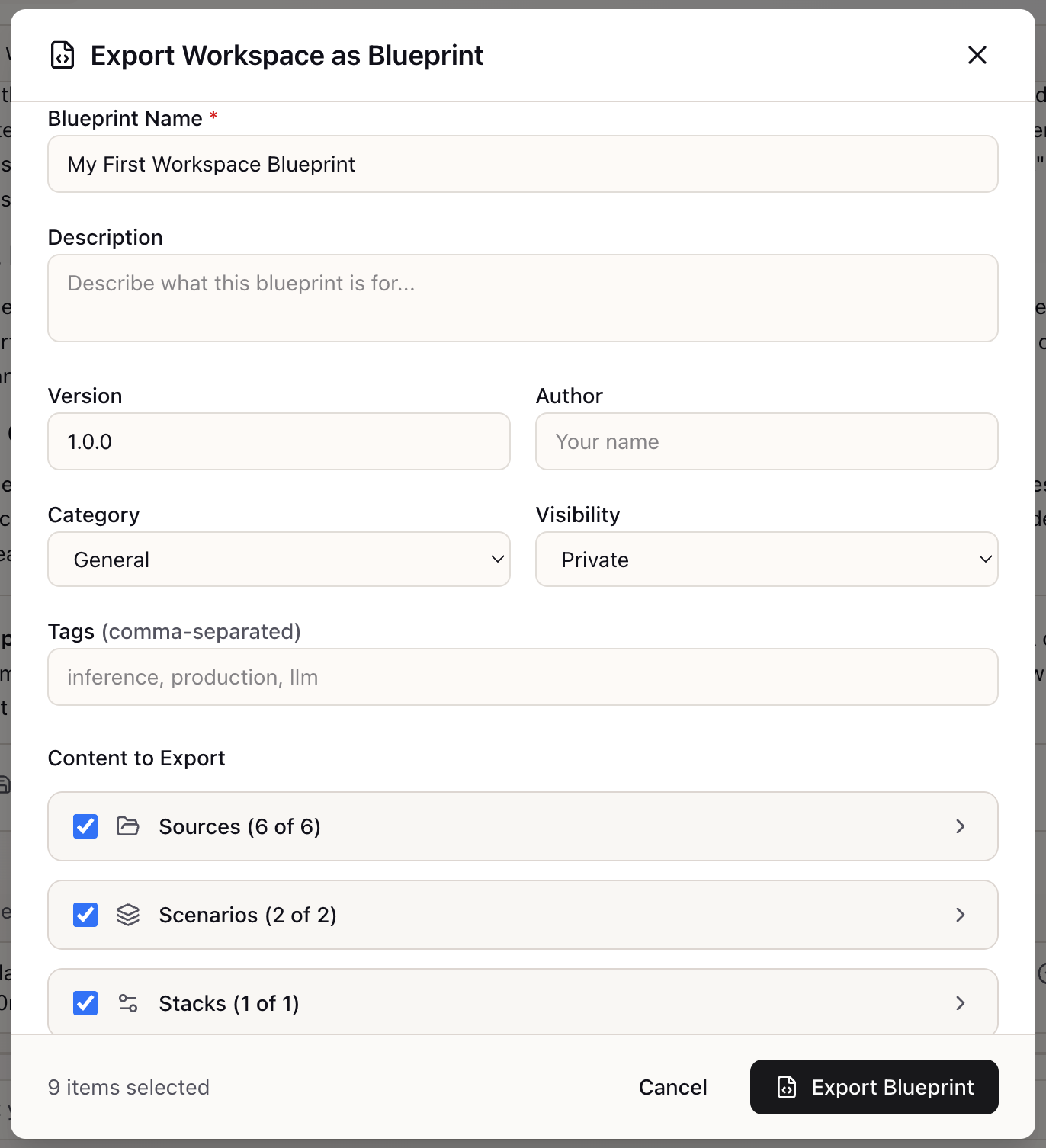
When I have a working workspace configuration that took weeks to develop, I want to package it as a shareable blueprint, so I can replicate it in other workspaces, share it with colleagues, or version-control it for audit purposes.
Introduction
You’ve spent three weeks building the perfect RAG setup: curated sources from vendor documentation, battle-tested scenarios with production-grade SLOs, and a stack configuration that balances cost and performance. It works. Your team loves it. Now the Singapore team asks: “Can we get a copy of your setup?”
What follows is a familiar disaster. You export your sources as a list of URLs. You screenshot your scenario configuration. You write up the stack settings in a Confluence doc. Three weeks later, the Singapore team is still debugging why their implementation doesn’t work like yours—because they missed a scenario constraint you forgot to document.
The core problem is that infrastructure configurations are complex, interconnected artifacts. Sources inform scenarios. Scenarios constrain stacks. Stack choices affect source retrieval strategies. Sharing any piece in isolation loses the context that makes the whole system work.
How Lattice Helps
The export-blueprint journey transforms a complete workspace—sources, scenarios, and stacks—into a portable YAML file that captures the full configuration. One click packages weeks of work into an artifact that can be imported into another workspace, shared with colleagues, version-controlled in git, or published for community reuse.
The export is selective: you choose which sources to include, which scenarios to share, which stacks to package. The YAML format is deliberately human-readable. You can diff blueprints to see what changed, edit them in a text editor, or review them in a pull request before importing.
The Export-Blueprint Journey in Action
Step 1: Access the Export Modal
From the SourcesPanel header, locate the “Export Workspace as Blueprint” button (file-code icon). Click the button to open the Export Blueprint modal.
Step 2: Define Blueprint Metadata
The metadata fields establish the identity of your blueprint:
Blueprint Name (required): Enter a descriptive name that helps others understand what this blueprint provides.
- Good: “Production RAG for Customer Documentation”
- Avoid: “My Setup” or “Test Blueprint”
Description: Provide context about what this blueprint includes and when to use it.
Version: Track blueprint revisions with semantic versioning. Start with “1.0.0” for initial export.
Category: Select the primary use case: general, production, development, comparison, cost_optimization, rag, or agentic.
Step 3: Select Content to Include
The modal presents expandable sections for each content type:
Sources Section:
- Header shows “Sources (X of Y selected)”
- Master toggle checkbox to select/deselect all
- Each source shows title and type
Scenarios Section:
- Header shows “Scenarios (X of Y selected)”
- Each scenario shows name, category, and key SLOs
Stacks Section:
- Header shows “Stacks (X of Y selected)”
- Each stack shows name, model, and framework
Step 4: Set Visibility Options
Choose who can access this blueprint:
- Private: Only you can see and use this blueprint
- Team: Visible to your organization
- Public: Available to the Lattice community
Step 5: Export and Download
Click “Export Blueprint” to generate the package. The modal shows progress, success confirmation, and a “Download YAML” button.
The downloaded YAML contains:
name: Production RAG for Customer Documentationdescription: Battle-tested configuration for customer-facing documentation Q&Aversion: "1.0.0"author: Platform Teamcategory: productionvisibility: teamtags:  - rag  - production
sources:  - title: Anthropic Claude Documentation    type: url    url: https://docs.anthropic.com/    category: vendor
scenarios:  - name: Production Customer Q&A    category: inference    workload_type: rag    slos:      latency_p95_ms: 500      throughput_rps: 100
stacks:  - name: Claude + LangGraph Production    model:      provider: anthropic      model_id: claude-sonnet-4-5-20250929
Real-World Scenarios
Team Onboarding
A new ML engineer joins the platform team. Instead of spending a week understanding the production setup, they:
- Import the “Production RAG” blueprint to a personal workspace
- Explore the sources, scenarios, and stacks
- Make experimental changes without affecting production
- Learn the configuration through hands-on exploration
Time to productive: days instead of weeks.
Multi-Region Deployment
The US production team has a working setup. The EU team needs the same configuration adapted for GDPR compliance:
- US team exports production blueprint
- EU team imports the blueprint
- EU team modifies scenarios to add EU regions
- Both teams maintain consistent base configuration
Architecture Decision Records
Before an architecture review, the team needs to document the current state:
- Export the production workspace as a blueprint
- Commit the YAML to the architecture decision record repo
- Link the blueprint in the ADR document
The blueprint becomes part of the permanent documentation—not just a description of the system, but the actual configuration.
What You’ve Accomplished
By completing the export-blueprint journey, you can now:
- Package complete workspace configurations into shareable YAML files
- Selectively export sources, scenarios, and stacks
- Version-control your AI infrastructure configuration
- Share blueprints with team members or the community
What’s Next
Related capabilities extend the workflow:
- Blueprint Gallery: Browse and apply blueprints from the community
- Apply Blueprint: Import blueprint sources, scenarios, and stacks
- Workflow Templates: Pre-built templates for common patterns
The export-blueprint journey is available in Lattice v0.9.5+. Click the file-code icon in the Sources panel to package your workspace for sharing and reuse.
Ready to Try Lattice?
Get lifetime access to Lattice for confident AI infrastructure decisions.
Get Lattice for $99