
Using the Memory Calculator
When I am planning to fine-tune or train a large model, I want to accurately estimate GPU memory requirements, so I can provision the right infrastructure and avoid out-of-memory errors.
The Challenge
You’re planning to fine-tune Llama 3.1 70B on your company’s data. Before requisitioning $50K worth of H100 GPU hours, you need to answer a seemingly simple question: how many GPUs do I actually need?
The answer is anything but simple. GPU memory consumption during training depends on a cascade of interacting factors: model size, batch size, sequence length, precision, optimizer choice, and parallelism strategy. Change one variable and the entire calculation shifts. Use ZeRO Stage 3 and your parameter memory gets sharded across GPUs. Enable activation checkpointing and you trade compute for memory.
For research engineers, this complexity leads to one of two outcomes: over-provisioning (burning money on GPUs you don’t need) or under-provisioning (out-of-memory errors that halt training mid-run). Both are expensive.
How Lattice Helps
The Memory Calculator implements the formulas from the HuggingFace Ultrascaling Playbook—the same methodology used by teams training frontier models. Instead of manually computing memory requirements across four components (parameters, gradients, optimizer states, activations), you configure your training setup and get instant, accurate estimates.
Step 1: Open the Memory Calculator
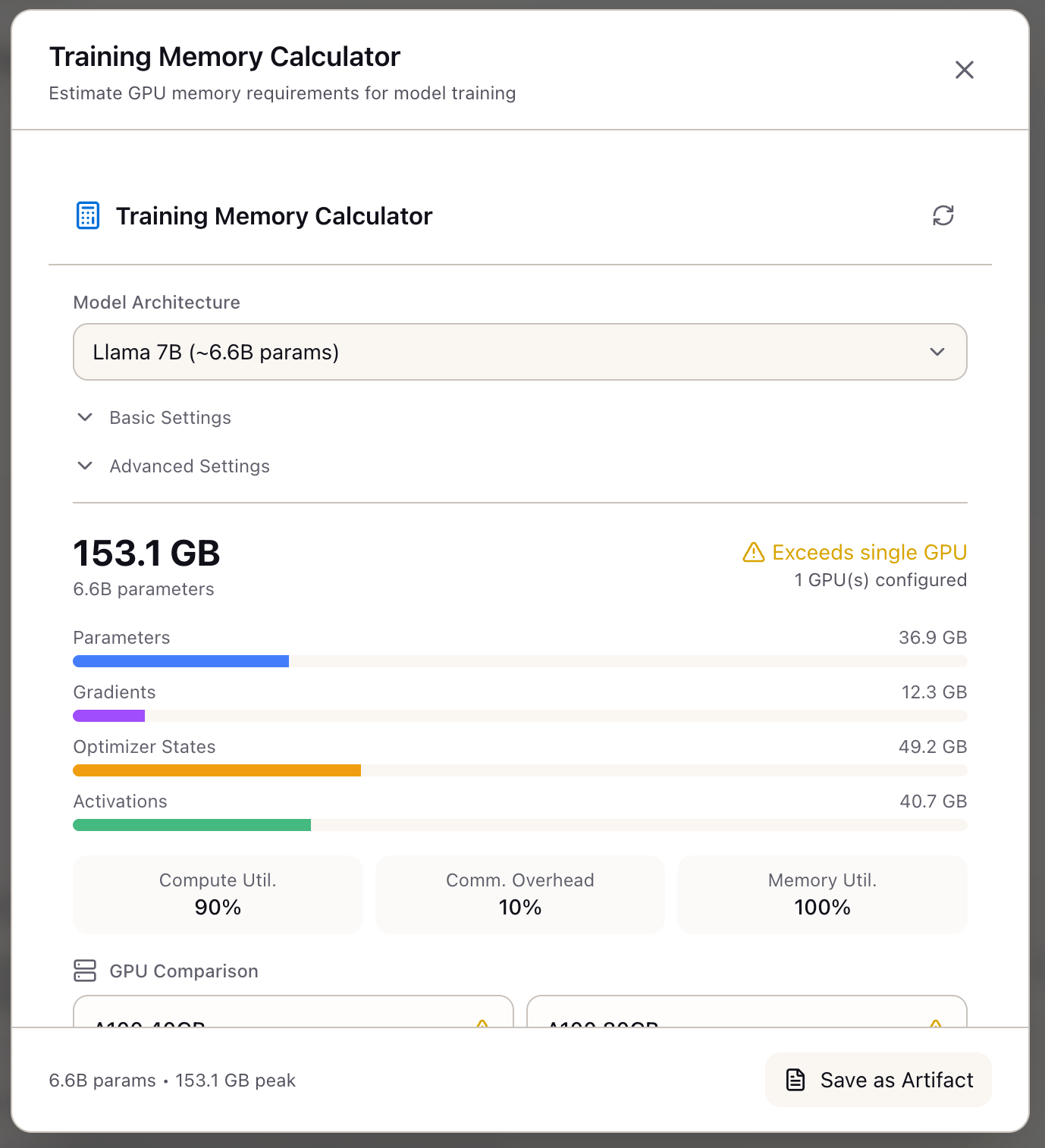
Click Memory Calculator in the Tools section of the Studio panel. The calculator opens as a modal with configuration inputs and real-time results visualization.
Select a Model Architecture from the preset dropdown:
| Preset | Parameters | Context |
|---|---|---|
| Llama 7B | ~6.6B | Standard transformer |
| Llama 13B | ~13.5B | Medium scale |
| Llama 70B | ~70B | Large scale with GQA |
| Llama 3 8B | ~8.3B | Latest architecture |
| Llama 3 70B | ~72B | GQA optimized |
| Mistral 7B | ~7.3B | Sliding window attention |
The calculator immediately shows the Peak Memory estimate (153.1 GB in this example) with a breakdown:
- Parameters: 36.9 GB (model weights)
- Gradients: 12.3 GB (backward pass)
- Optimizer States: 49.2 GB (Adam has 2 states per param)
- Activations: 40.7 GB (attention scores, intermediate values)
The status indicator shows whether this exceeds a single GPU’s capacity.
Step 2: Configure Basic Training Settings
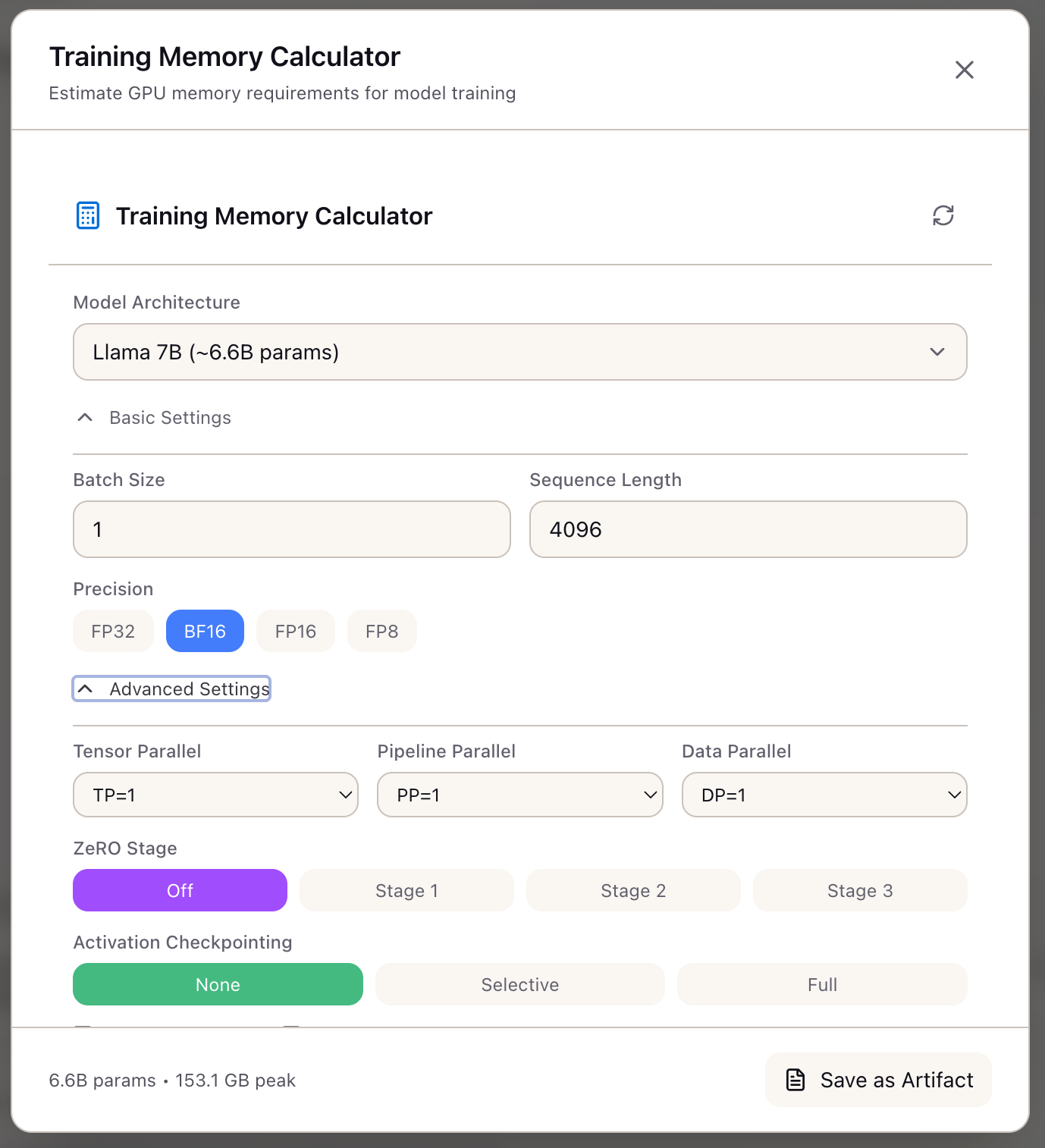
Expand Basic Settings to configure:
- Batch Size: Micro-batch size per GPU (1 in this example)
- Sequence Length: Maximum sequence length (4096 tokens)
- Precision: Select from FP32, BF16, FP16, or FP8
| Precision | Bytes/Param | Use Case |
|---|---|---|
| FP32 | 4 | Debugging, high precision |
| BF16 | 2 | Standard training (recommended) |
| FP16 | 2 | Compatible with older GPUs |
| FP8 | 1 | H100 with transformer engine |
Step 3: Configure Advanced Optimizations
Expand Advanced Settings to enable memory-saving techniques:
Parallelism Settings:
| Setting | Description |
|---|---|
| Tensor Parallel (TP) | Split model layers across GPUs (1-8) |
| Pipeline Parallel (PP) | Split layers into stages |
| Data Parallel (DP) | Replicate model with gradient averaging |
ZeRO Optimization:
| Stage | What’s Sharded | Savings |
|---|---|---|
| Off | Nothing | Baseline |
| Stage 1 | Optimizer states | ~4x optimizer reduction |
| Stage 2 | + Gradients | Additional gradient reduction |
| Stage 3 | + Parameters | Full sharding across DP |
Activation Checkpointing:
| Mode | Memory Savings | Compute Overhead |
|---|---|---|
| None | 0% | 0% |
| Selective | ~70% | ~20% |
| Full | ~90% | ~33% |
Step 4: Review GPU Comparison and Recommendations
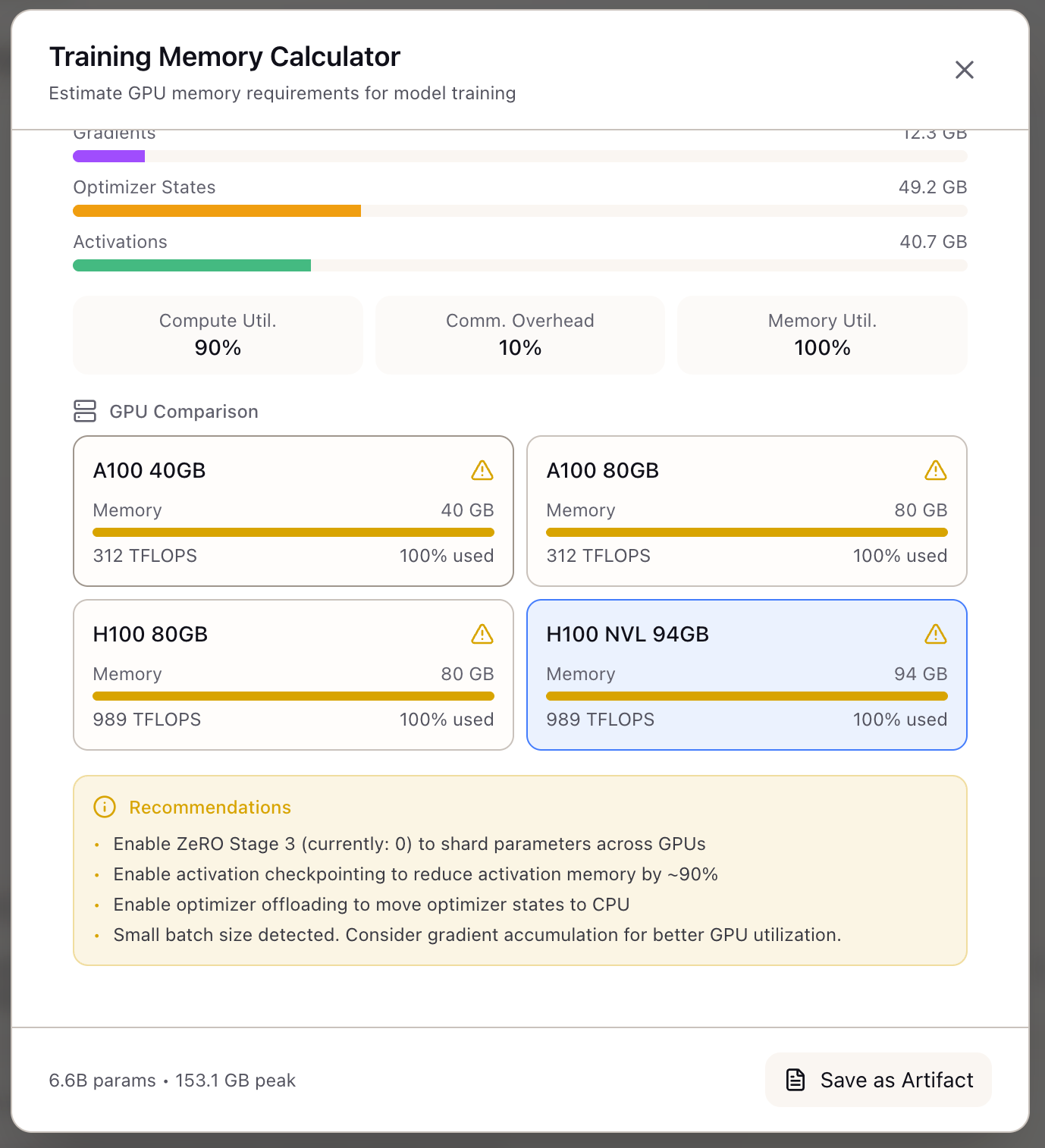
The GPU Comparison section shows how your configuration fits across common accelerators:
| GPU | Memory | TFLOPS | Status |
|---|---|---|---|
| A100 40GB | 40 GB | 312 | May exceed |
| A100 80GB | 80 GB | 312 | May exceed |
| H100 80GB | 80 GB | 989 | May exceed |
| H100 NVL 94GB | 94 GB | 989 | Selected |
Each card shows memory utilization percentage and a warning icon if the configuration exceeds GPU capacity.
The Recommendations panel provides actionable suggestions when your configuration doesn’t fit:
- Enable ZeRO Stage 3 to shard parameters across GPUs
- Enable activation checkpointing to reduce activation memory by ~90%
- Enable optimizer offloading to move optimizer states to CPU
- Consider gradient accumulation for better GPU utilization with small batch sizes
Step 5: Save as Artifact
Click Save as Artifact to preserve your memory calculation in the Studio panel. This creates a reusable reference you can share with your team or revisit when planning future training runs.
Memory Formula Reference
The calculator implements these formulas from the HuggingFace Ultrascaling Playbook:
Memory Per Component:
Parameters: num_params × bytes_per_elementGradients: num_params × bytes_per_elementOptimizer: num_params × num_states × 4 bytes (Adam: 2 states)Activations: layers × (attention + ffn activations) × bytesOptimization Reductions:
TP: Divides all components by TP degreePP: Divides all components by PP degreeZeRO-1: Divides optimizer by DP degreeZeRO-2: Additionally divides gradients by DP degreeZeRO-3: Additionally divides parameters by DP degreeFull Checkpointing: Reduces activations by 90%What You’ve Accomplished
You now have accurate GPU memory estimates that:
- Account for all memory components (params, gradients, optimizer, activations)
- Factor in optimization techniques (ZeRO, checkpointing, parallelism)
- Compare across GPU hardware options
- Provide actionable recommendations when configurations don’t fit
What’s Next
With memory requirements understood, explore these related capabilities:
- Create a Training Scenario: Define SLOs and budget for your training workload
- Configure a Stack: Set up hardware configuration based on memory estimates
- TCO Calculator: Factor memory requirements into total cost projections
Memory Calculator is available in Lattice. Calculate GPU memory requirements before committing to infrastructure.
Ready to Try Lattice?
Get lifetime access to Lattice for confident AI infrastructure decisions.
Get Lattice for $99