
Validating Blueprint URLs with Refresh
When I want to apply a blueprint to my workspace, I want to verify that all source URLs are still accessible, so I can avoid broken links and ensure my research starts with valid documentation.
Introduction
Blueprints in Lattice bundle curated documentation sources, scenarios, and stacks for quick workspace setup. However, documentation URLs can change over time—pages get moved, restructured, or deprecated. Before applying a blueprint, you want confidence that the sources will actually work.
The Refresh feature validates all URLs in a blueprint, checking each source in parallel and reporting which are accessible and which have issues. This takes seconds and gives you immediate visibility into the blueprint’s health.
Step 1: Opening the Blueprint Gallery
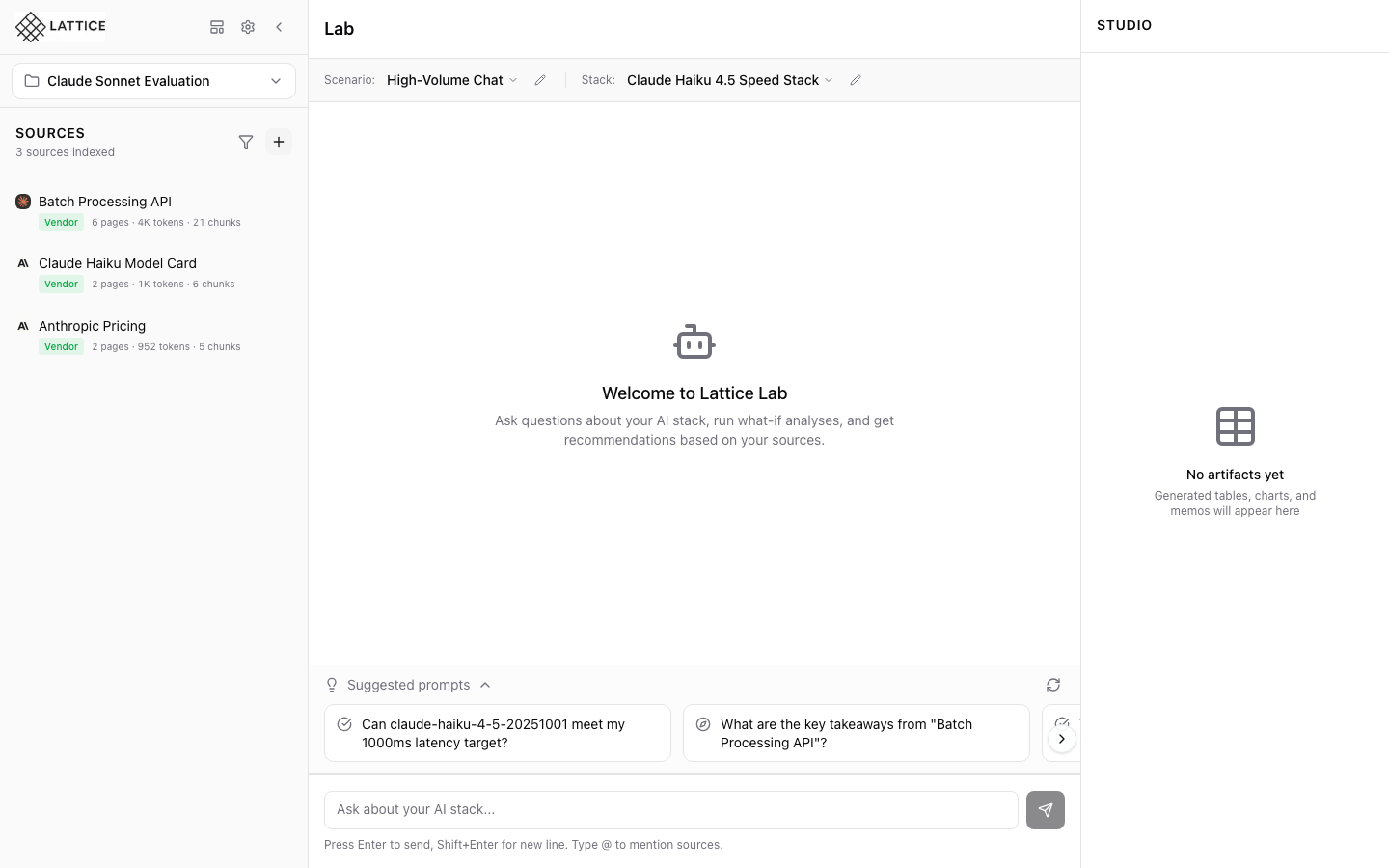
From any workspace, click the Blueprints icon in the sidebar to open the Blueprint Gallery. The icon looks like a package and is located below the settings gear.
Step 2: Browsing Available Blueprints
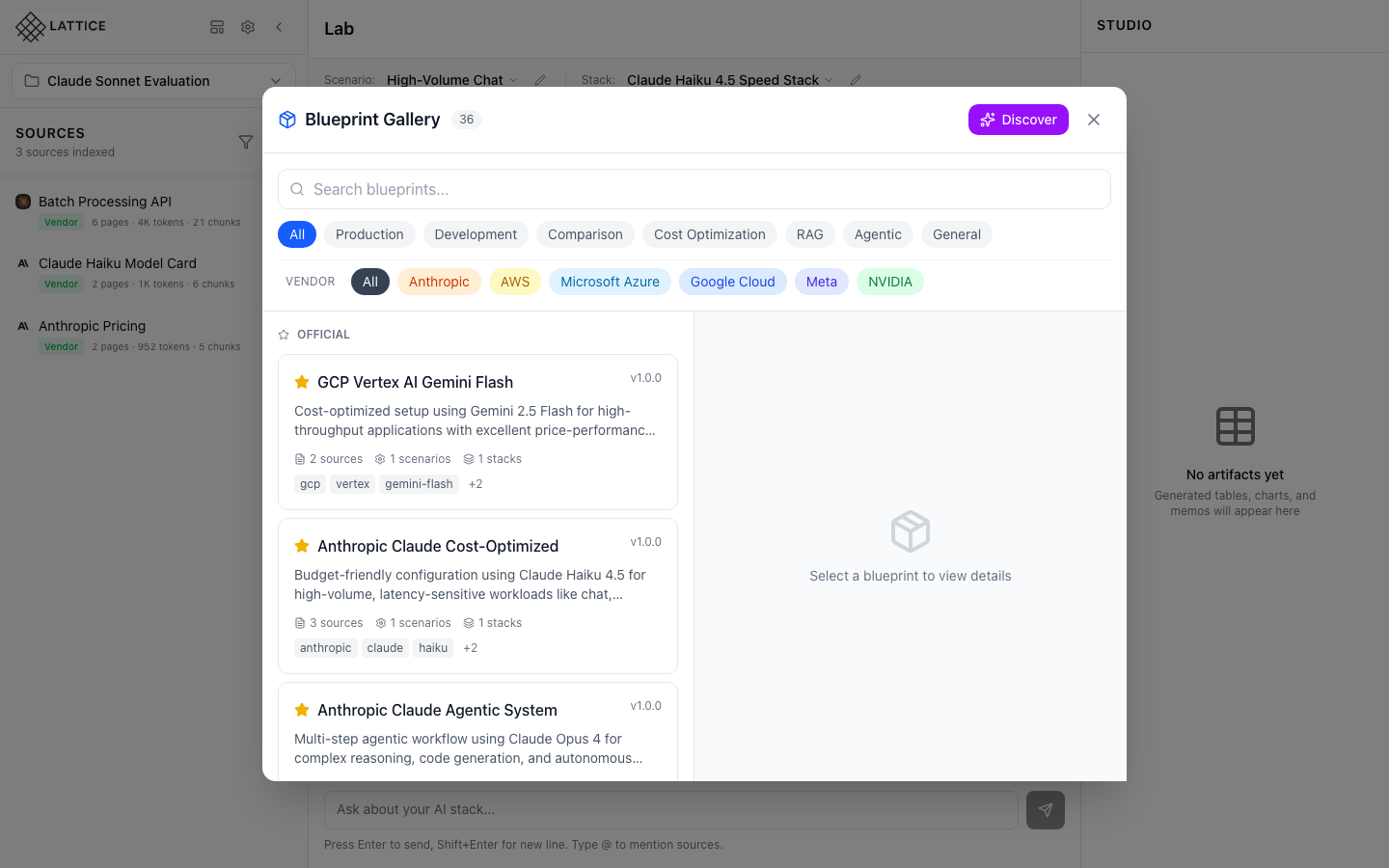
The Blueprint Gallery displays 36 curated blueprints organized by category and vendor. Official blueprints from the Lattice Team are marked with a gold star. Each card shows:
- Blueprint name and version
- Brief description
- Source count, scenarios, and stacks
- Vendor tags
Step 3: Selecting a Blueprint
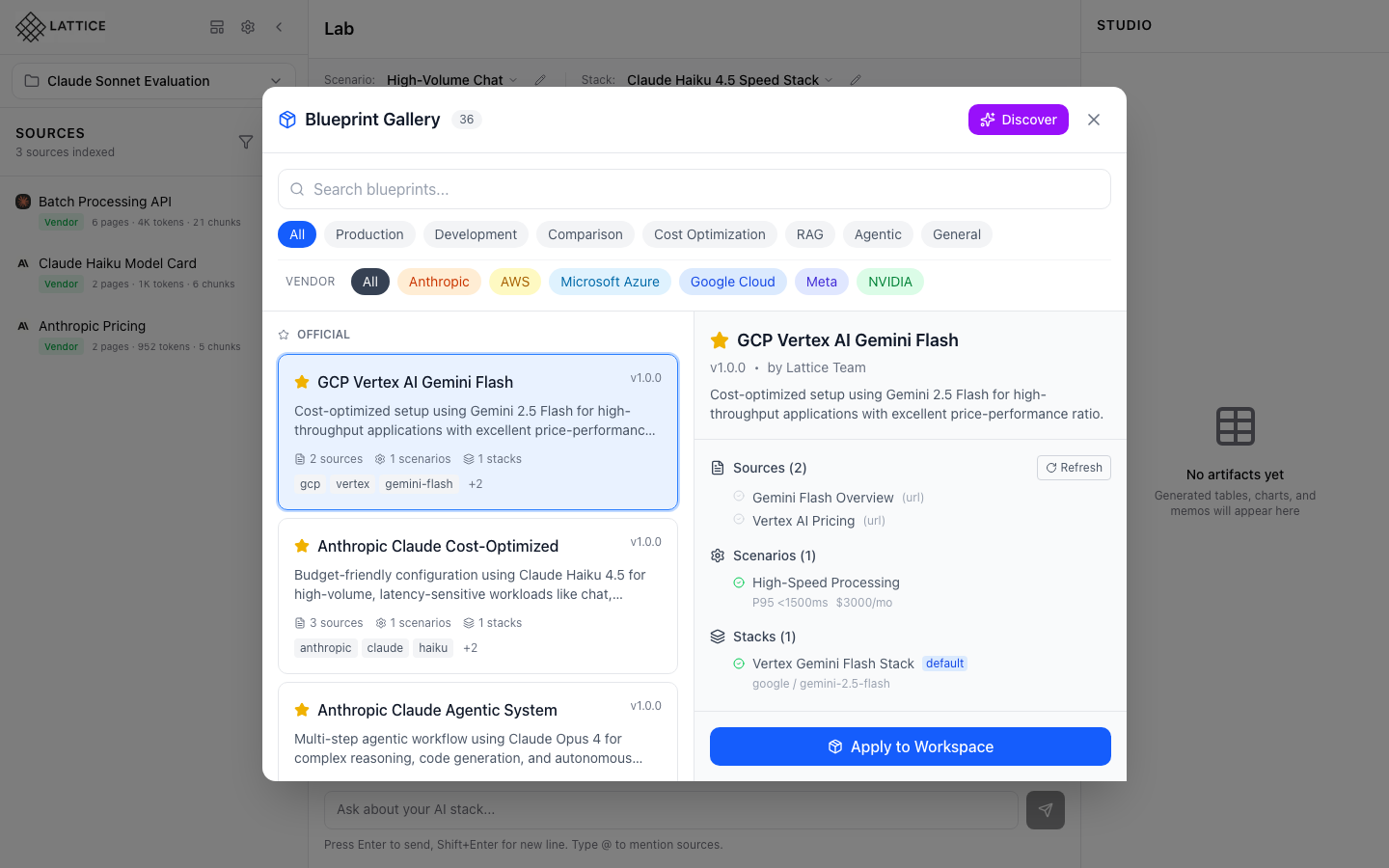
Click on a blueprint card to view its details in the right panel. Here we’ve selected GCP Vertex AI Gemini Flash, a cost-optimized setup for high-throughput applications.
The detail panel shows:
- Sources (2) — The documentation URLs bundled with this blueprint
- Scenarios (1) — Workload configurations like “High-Speed Processing”
- Stacks (1) — Model and framework configurations
- Refresh button — Located next to the Sources header
Notice the Refresh button in the Sources section header. Before the sources have gray circles indicating their validation status is unknown.
Step 4: Refreshing the Blueprint
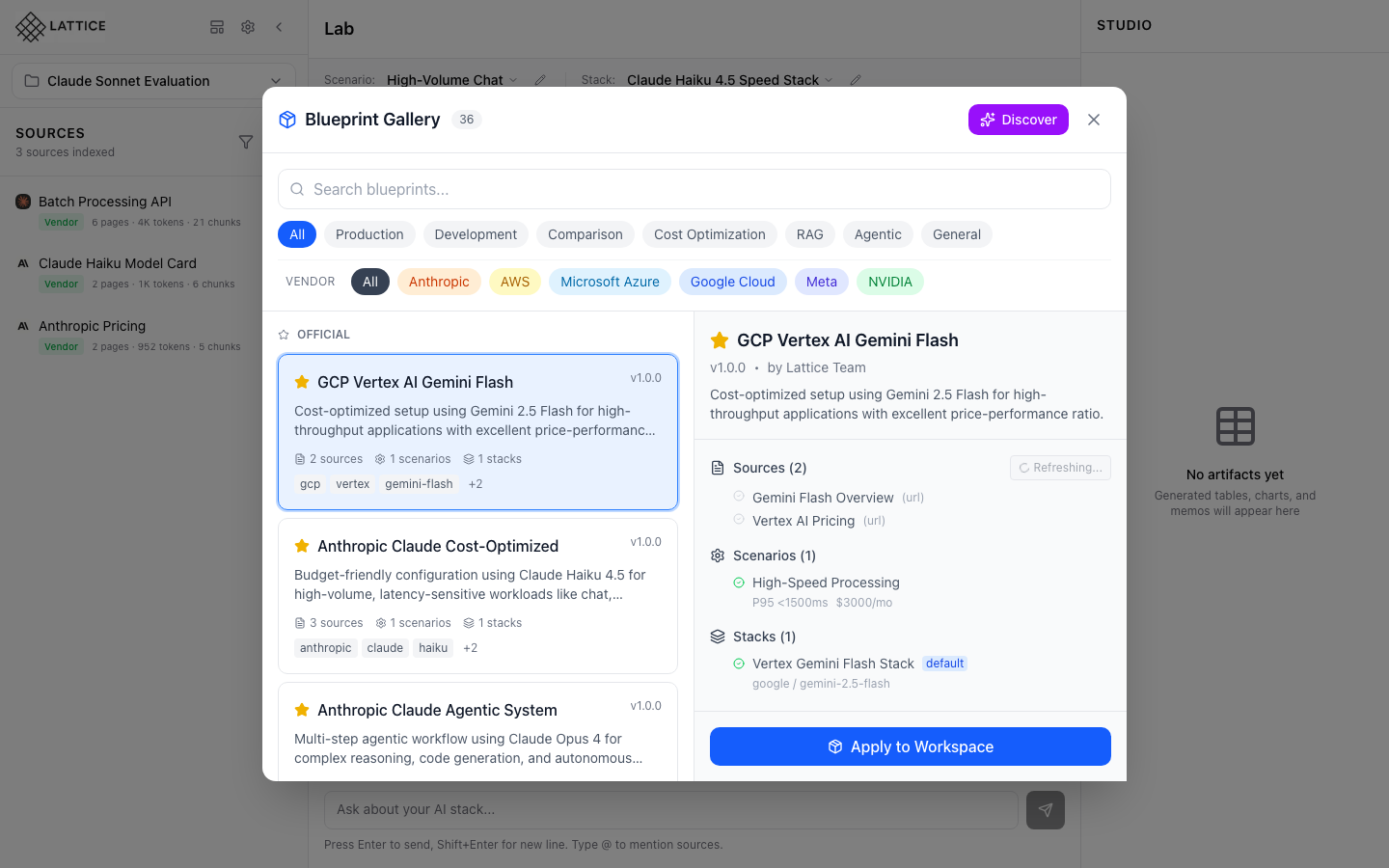
Click the Refresh button to start URL validation. The button shows a spinning loader while Lattice checks each source URL in parallel.
During refresh:
- Each URL is fetched with a HEAD request
- Redirects are followed to final destinations
- Response status codes are checked
- Invalid URLs are flagged with error details
Step 5: Viewing Validation Results
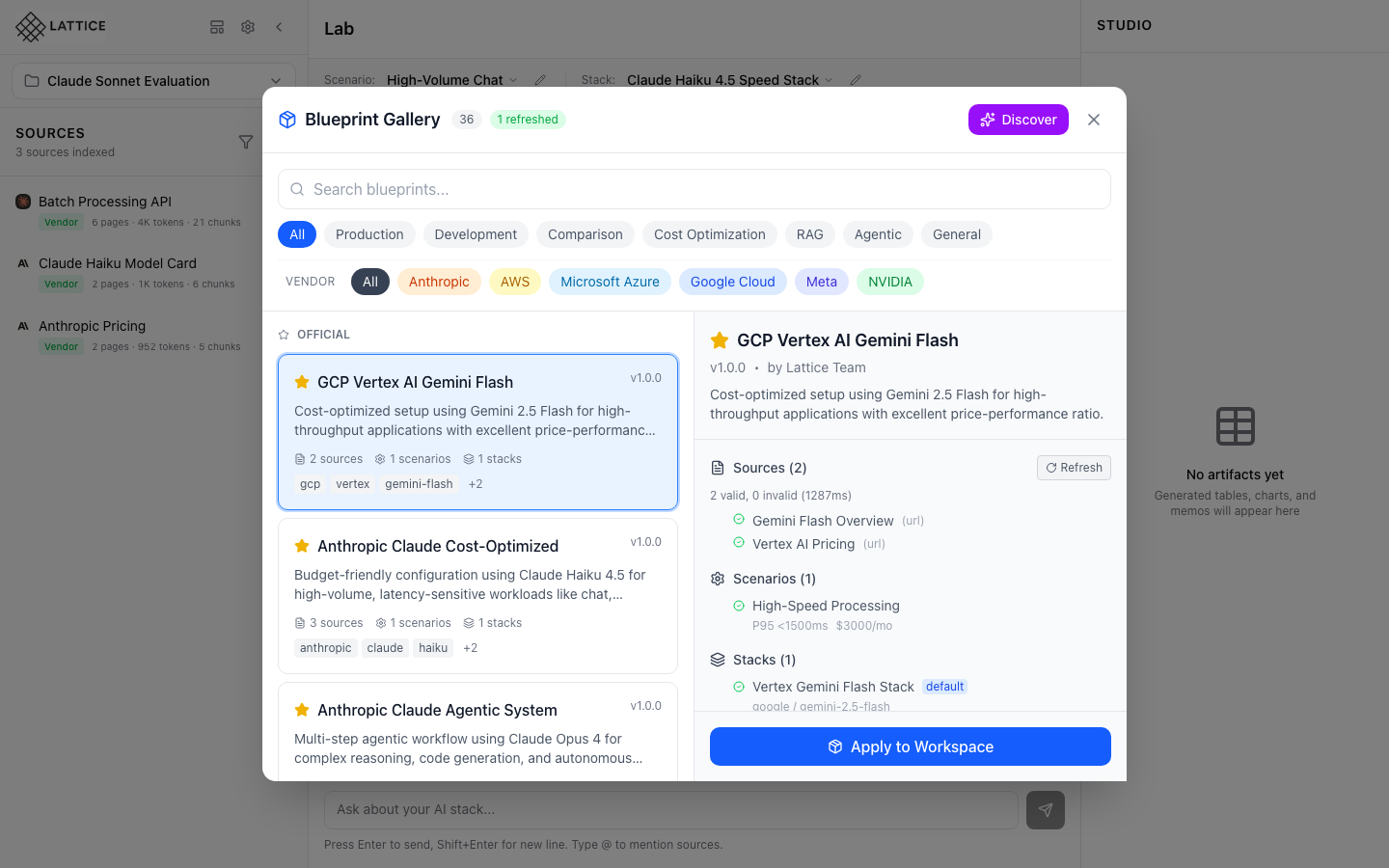
After refresh completes, you see the validation results:
- “2 valid, 0 invalid (1287ms)” — Summary showing all sources passed validation
- Green checkmarks — Each source URL now shows a green checkmark indicating it’s accessible
- “1 refreshed” — Counter in the gallery header tracks refreshed blueprints
The sources “Gemini Flash Overview” and “Vertex AI Pricing” are both confirmed valid. You can now confidently click Apply to Workspace knowing these documentation pages exist and are accessible.
What You’ve Accomplished
You’ve learned how to validate blueprint sources before applying them:
- Access Blueprint Gallery — Browse 36+ curated blueprints
- View blueprint details — See sources, scenarios, and stacks
- Refresh sources — Validate all URLs with one click
- Check results — Green checkmarks confirm accessible sources
This workflow helps you:
- Avoid broken links — Catch 404s and moved pages before they impact research
- Save time — Validate in seconds rather than discovering issues later
- Make informed decisions — Choose blueprints with healthy, active documentation
Next steps: Apply validated blueprints to populate your workspace, or use Discover to generate blueprints for topics not yet covered.
Ready to Try Lattice?
Get lifetime access to Lattice for confident AI infrastructure decisions.
Get Lattice for $99