
Stop Defending Infrastructure Decisions with Handwaving
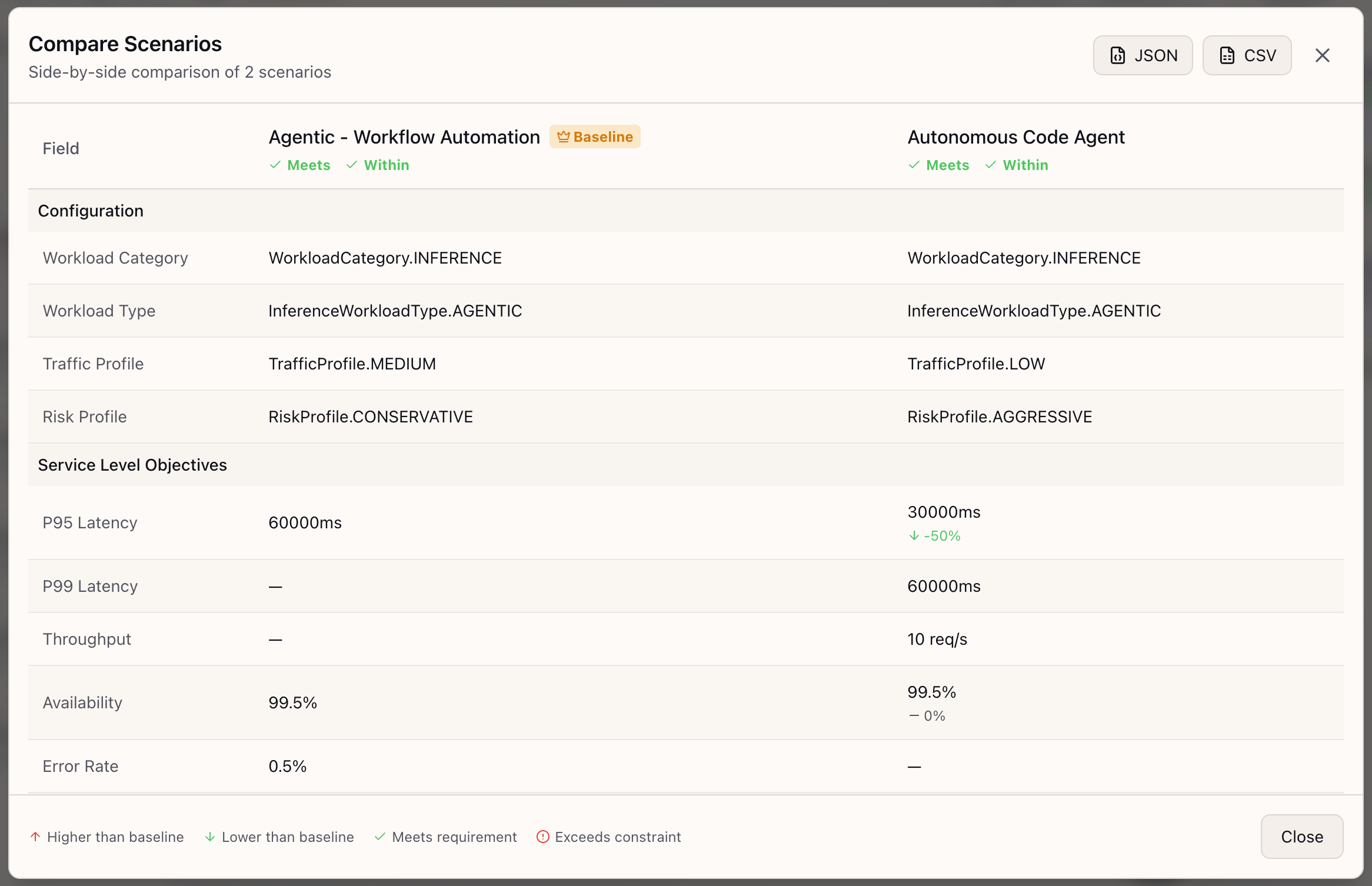
When I need to justify why we need a more expensive infrastructure option, I want to see scenarios compared side-by-side with automatic delta calculation, so I can produce stakeholder-ready documentation without manual spreadsheet work.
Introduction
“Can you show me why we need the more expensive option?”
This question haunts every infrastructure decision meeting. You’ve done the analysis. You know the production scenario needs tighter latency SLOs, which means a more capable model tier, which costs more. But when leadership asks for justification, you’re left toggling between browser tabs, manually calculating percentage differences, and hoping you don’t transpose a number while presenting.
For platform teams making decisions about AI infrastructure, the comparison problem is pervasive. You’ve defined three scenarios: the conservative budget option, the balanced production configuration, and the enterprise tier with tighter SLOs. But actually comparing them requires manual work that takes hours and introduces human error at every step.
How Lattice Helps
Scenario Comparison transforms infrastructure decision-making from spreadsheet archaeology into interactive analysis. Select 2-4 scenarios, click Compare, and see them side-by-side in a structured table with automatic delta calculation, requirement satisfaction indicators, and one-click export.
The comparison table answers the question stakeholders actually ask: “How do these options differ, and which constraints does each satisfy?” Every row shows the baseline value alongside each alternative, with delta percentages calculated automatically. Green means savings or improvement; red means increased cost or requirement violation.
Scenario Comparison in Action
Selecting Scenarios to Compare
From the StudioPanel’s Scenarios section, select 2-4 scenarios for comparison:
- Enable Selection Mode: Checkboxes appear beside each scenario card
- Select Scenarios: Click the checkbox on each scenario you want to compare
- Monitor Selection Count: The Compare button shows how many are selected (e.g., “Compare (3)”)
- Open Comparison: Click the Compare button to launch the modal
Reading the Comparison Table
The comparison modal presents a structured table with your scenarios as columns:
Column Headers: Each scenario column displays:
- Scenario Name: The configuration you’re comparing
- Baseline Badge: A crown icon marks the baseline scenario
- Requirement Status: Checkmark (meets requirements) or X (violations)
- Budget Status: Within, Under, or Over budget indicator
Category Groupings: Rows are organized by category:
- Configuration: Workload type, traffic profile, model selection
- Service Level Objectives: P95 latency, throughput, availability targets
- Budget: Monthly limit, estimated cost
- Compliance: Data residency, certifications, regional requirements
Delta Indicators: For non-baseline columns, each cell shows:
- Value: The actual configuration value
- Delta Arrow: Up (red) or Down (green) with percentage change
- Visual Coding: Green for improvements/savings, red for increases/violations
Understanding Delta Logic
The comparison uses intuitive color coding:
| Indicator | Meaning | Example |
|---|---|---|
| Down Green | Lower than baseline (usually good) | Cost: $3,120 -35% |
| Up Red | Higher than baseline (usually caution) | Latency: 800ms +60% |
| Check Green | Meets stated requirements | All SLOs satisfied |
| X Red | Exceeds constraints | Over budget |
Exporting Comparison Data
The comparison modal header includes export buttons:
JSON Export:
- Full structured data with scenario IDs and metadata
- Ideal for programmatic consumption or archival
CSV Export:
- Spreadsheet-friendly format with delta annotations
- Perfect for embedding in reports or sharing with non-technical stakeholders
Real-World Scenarios
Budget Justification Meeting
A platform lead has three scenarios to present to finance: Conservative (low budget, relaxed SLOs), Balanced (production-ready), and Enterprise (tight SLOs, premium cost). Instead of building a comparison spreadsheet, they:
- Select all three scenarios in StudioPanel
- Click Compare to see the side-by-side table
- Point to the delta column: “Enterprise costs 158% more than Conservative”
- Show requirement status: “Only Balanced and Enterprise meet our P95 SLO”
- Export to CSV and attach to the budget proposal
The comparison table becomes the decision artifact—no additional formatting needed.
Evaluating Training Configurations
An ML engineer is planning a fine-tuning run and has created scenarios for different GPU configurations: 4x A100, 8x A100, and 16x A100. The comparison table shows:
- GPU Hours: 4x requires 2x more wall-clock time than 8x
- Estimated Cost: 8x is only 15% more expensive than 4x (less time = less cost)
- Memory Headroom: 16x is only needed for full fine-tune; 8x works for LoRA
The side-by-side view reveals that 8x A100 is the sweet spot.
Architecture Review Documentation
A technical lead needs to document the infrastructure decision for an architecture review:
- Open the four saved variations
- Compare them in the scenario comparison modal
- Export to JSON for the architecture decision record
- Export to CSV for the slide deck appendix
What You’ve Accomplished
By using Scenario Comparison, you can now:
- Compare 2-4 scenarios side-by-side with automatic delta calculation
- See which scenarios meet or violate requirements at a glance
- Export comparisons as CSV or JSON for stakeholder documentation
- Produce decision artifacts without manual spreadsheet work
What’s Next
Related capabilities you might explore:
- What-If Panel: Interactive sliders for creating scenario variations
- Scenario Variations: Save and manage variations from what-if exploration
- Export Blueprint: Package your chosen scenario configuration as a shareable blueprint
Scenario Comparison is available in Lattice v0.8.11+. Select 2-4 scenarios in the StudioPanel and click Compare to start building decision artifacts.
Ready to Try Lattice?
Get lifetime access to Lattice for confident AI infrastructure decisions.
Get Lattice for $99