
Selecting a Scenario
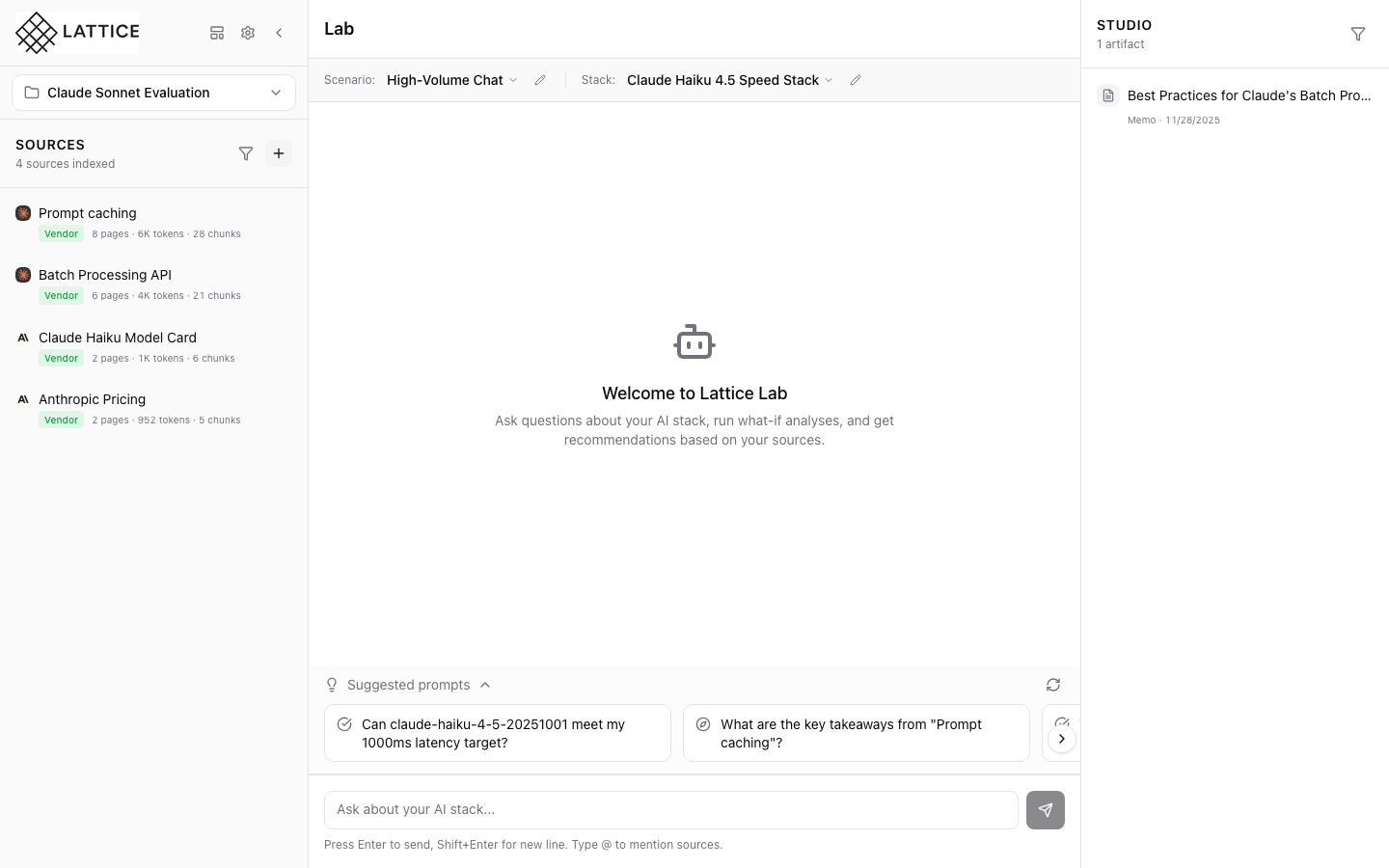
When I need to compare different AI stack options, I want to switch between workload configurations, so I can evaluate how different scenarios affect my infrastructure recommendations.
Introduction
In Lattice, Scenarios define your workload requirements—the traffic patterns, latency SLOs, budget constraints, and compliance needs that shape your AI infrastructure decisions. Different scenarios lead to different stack recommendations, so being able to quickly switch between them is essential for comparing options.
The ContextBar at the top of the Lab panel makes scenario switching instant. You can see your current scenario at a glance and switch to another with a single click, immediately changing the context for all your AI conversations and recommendations.
Step 1: Current Scenario in ContextBar
The ContextBar appears below the Lab header, showing your active context:
Scenario Section (Left)
- Label: “Scenario:”
- Current Value: “High-Volume Chat” with dropdown indicator
- Edit Icon: Pencil icon for quick editing
Stack Section (Right)
- Label: “Stack:”
- Current Value: “Claude Haiku 4.5 Speed Stack”
- Edit Icon: Pencil icon for quick editing
The ContextBar provides immediate visibility into what configuration is driving your current session. Every question you ask and every recommendation you receive is informed by this scenario-stack pairing.
Step 2: Scenario Dropdown
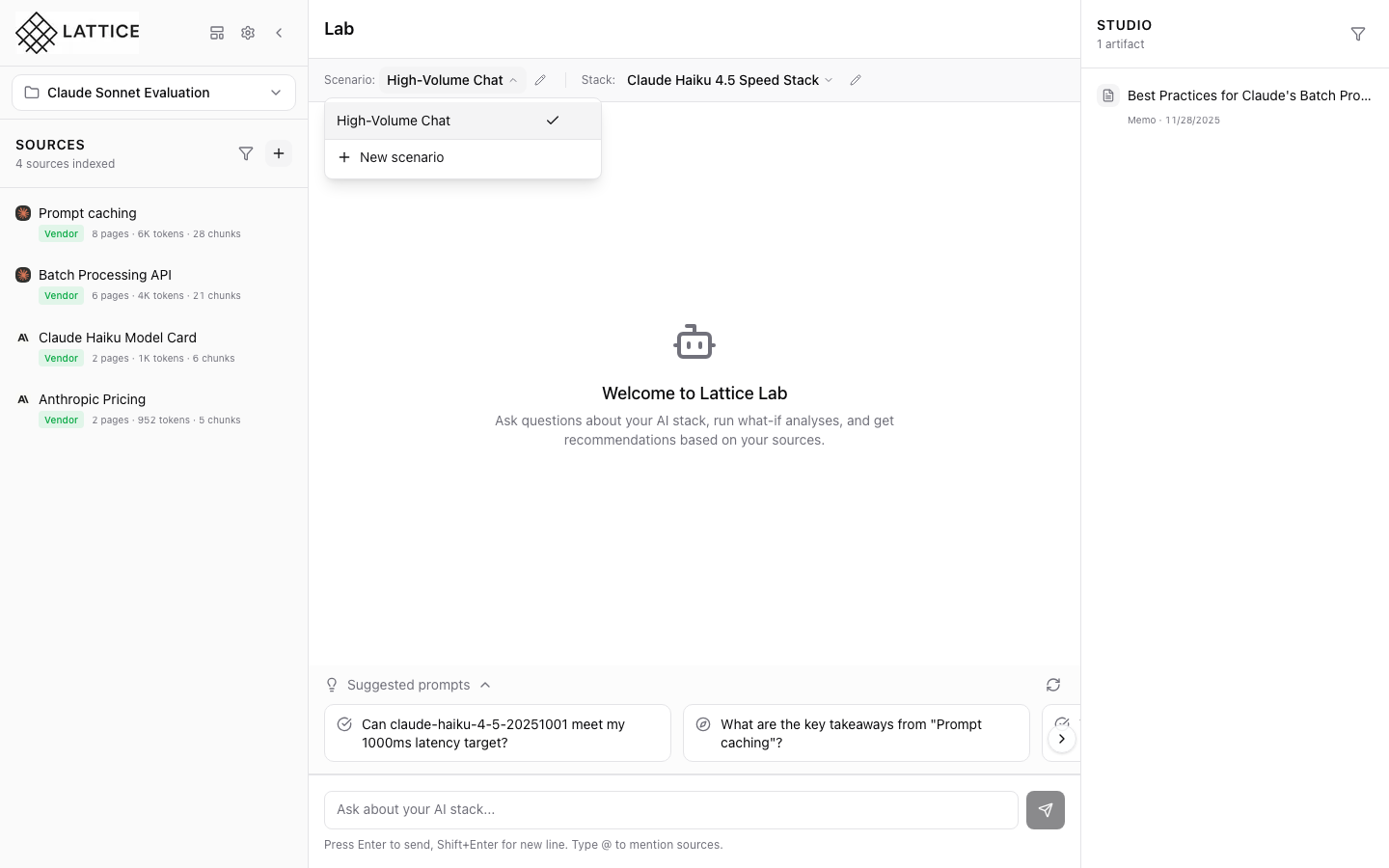
Click the scenario selector to open the dropdown menu:
Current Selection
- “High-Volume Chat” appears with a checkmark indicating it’s the active scenario
Available Actions
- + New scenario: Create a new scenario configuration from scratch or from templates
Scenario List Each scenario in the dropdown shows:
- Name: The scenario title (e.g., “High-Volume Chat”)
- Selection indicator: Checkmark on the currently active scenario
When you have multiple scenarios, they all appear here, allowing you to quickly compare how different workload configurations affect your recommendations.
Step 3: Scenario Selected
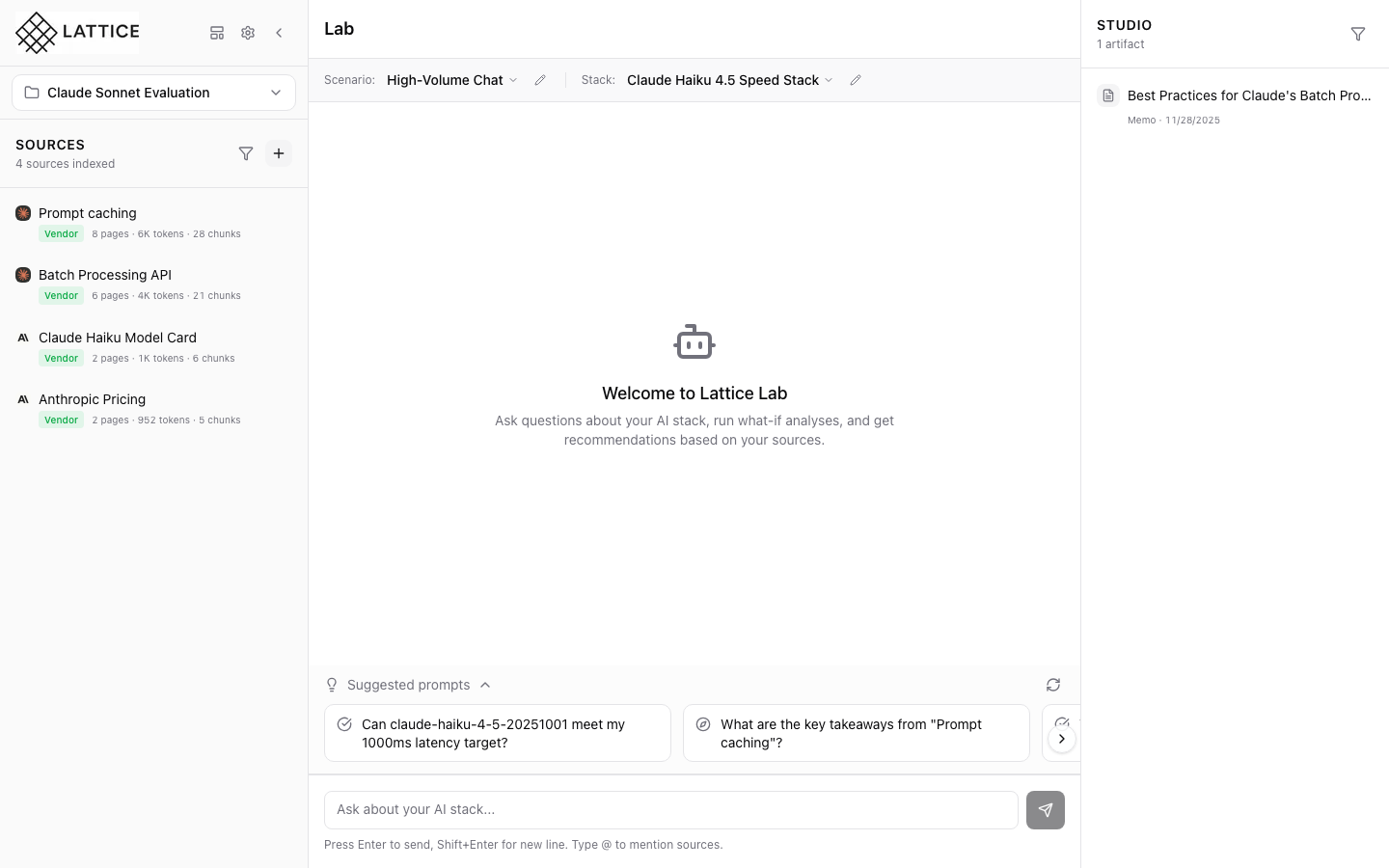
After selecting a scenario, the ContextBar updates immediately:
- The scenario name updates to reflect your selection
- Your current stack remains paired with the new scenario
- The Lab is ready to provide recommendations in the new context
The suggested prompts below adapt to your scenario context, showing relevant questions like “Can claude-haiku-4-5-20251001 meet my 1000ms latency target?” based on your scenario’s SLO requirements.
What You’ve Accomplished
You’ve learned how to switch between scenarios in Lattice:
- View current context — The ContextBar shows your active scenario and stack at a glance
- Open the dropdown — Click the scenario selector to see all available scenarios
- Switch instantly — Select a different scenario to change your workload context
- Maintain stack pairing — Your selected stack stays active across scenario changes
Key benefits of scenario switching:
- Quick comparison — Test the same questions against different workload profiles
- Context preservation — Each scenario remembers its configuration
- Informed decisions — See how different requirements lead to different recommendations
- Flexible evaluation — Compare inference, training, and comparison workloads
Next steps: Create a new scenario with custom SLOs and budget constraints, or pair different stacks with your scenarios to compare configurations.
Ready to Try Lattice?
Get lifetime access to Lattice for confident AI infrastructure decisions.
Get Lattice for $99