
Selecting a Stack
When I need to evaluate different infrastructure configurations, I want to switch between stacks for my scenario, so I can compare how different model, framework, and hardware choices affect my AI workload.
Introduction
In Lattice, Stacks define your infrastructure configuration—the specific model provider, orchestration framework, observability tools, and hardware setup that will execute your AI workload. While scenarios define what you need, stacks define how you’ll achieve it.
The ContextBar lets you quickly switch between stacks to compare configurations. Each stack can specify a different model (Claude vs GPT vs Gemini), different frameworks (LangGraph vs LangChain), and different infrastructure (AWS vs GCP, H100 vs A100). Switching stacks lets you see how these choices affect cost, latency, and capability recommendations.
Step 1: Current Stack in ContextBar
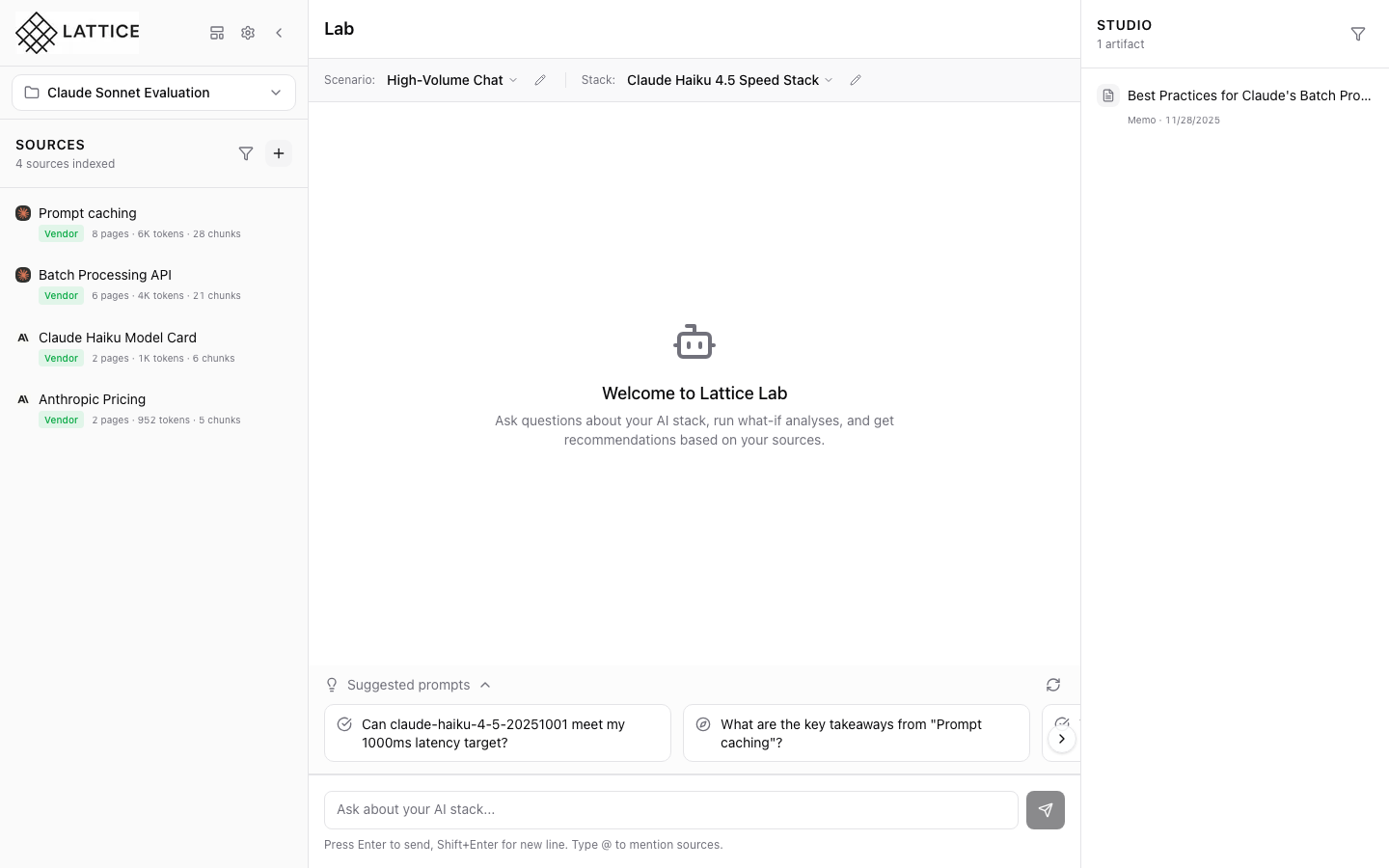
The ContextBar displays your active stack configuration alongside your scenario:
Stack Section
- Label: “Stack:”
- Current Value: “Claude Haiku 4.5 Speed Stack”
- Dropdown Indicator: Chevron showing it’s clickable
- Edit Icon: Pencil icon for quick configuration changes
The current stack name tells you at a glance what infrastructure powers your session. “Claude Haiku 4.5 Speed Stack” indicates this stack is optimized for low-latency responses using Anthropic’s fastest model.
Step 2: Stack Dropdown

Click the stack selector to open the dropdown menu:
Current Selection
- “Claude Haiku 4.5 Speed S…” appears with:
- Default badge: Green “default” label indicating this is the workspace default
- Checkmark: Indicates it’s currently active
Available Actions
- + New stack: Create a new stack configuration with custom model, framework, and hardware settings
Stack Features Each stack in the dropdown displays:
- Name: The stack title (truncated if long)
- Default indicator: Badge showing which stack is the workspace default
- Selection state: Checkmark on the currently active stack
The default stack is automatically selected when you switch workspaces or create a new scenario, ensuring you always have a working configuration.
Step 3: Stack Selected

After selecting a stack, the ContextBar confirms your choice:
- The stack name updates to show your selection
- Your scenario remains unchanged (scenario and stack are independent)
- The Lab is ready to provide recommendations using the new stack configuration
The suggested prompts remain relevant to your scenario’s requirements, but now the AI will consider your new stack’s capabilities when generating responses.
What You’ve Accomplished
You’ve learned how to switch between stacks in Lattice:
- View current stack — The ContextBar shows your active infrastructure configuration
- Identify the default — The “default” badge shows which stack is automatically selected
- Switch configurations — Click to select a different stack for your scenario
- Independent selection — Stacks and scenarios can be mixed and matched
Key benefits of stack switching:
- A/B comparison — Test the same scenario against different infrastructure configurations
- Cost optimization — Compare expensive high-performance stacks vs budget options
- Provider evaluation — See how Claude vs GPT vs Gemini affects your recommendations
- Framework testing — Compare LangGraph vs LangChain for your orchestration needs
What stacks configure:
- Model: Provider (Anthropic, OpenAI, Google), specific model, temperature, max tokens
- Framework: Orchestration (LangGraph, LangChain), observability (LangSmith, Langfuse), logging
- Hardware: Cloud provider, GPU type (H100, A100), instance family, region, spot instances
Next steps: Create a new stack with different model provider settings, or use “Suggest Stack” in your scenario to get AI-recommended configurations.
Ready to Try Lattice?
Get lifetime access to Lattice for confident AI infrastructure decisions.
Get Lattice for $99