
workspaces organization navigation
Switching Between Workspaces
Lattice Lab •
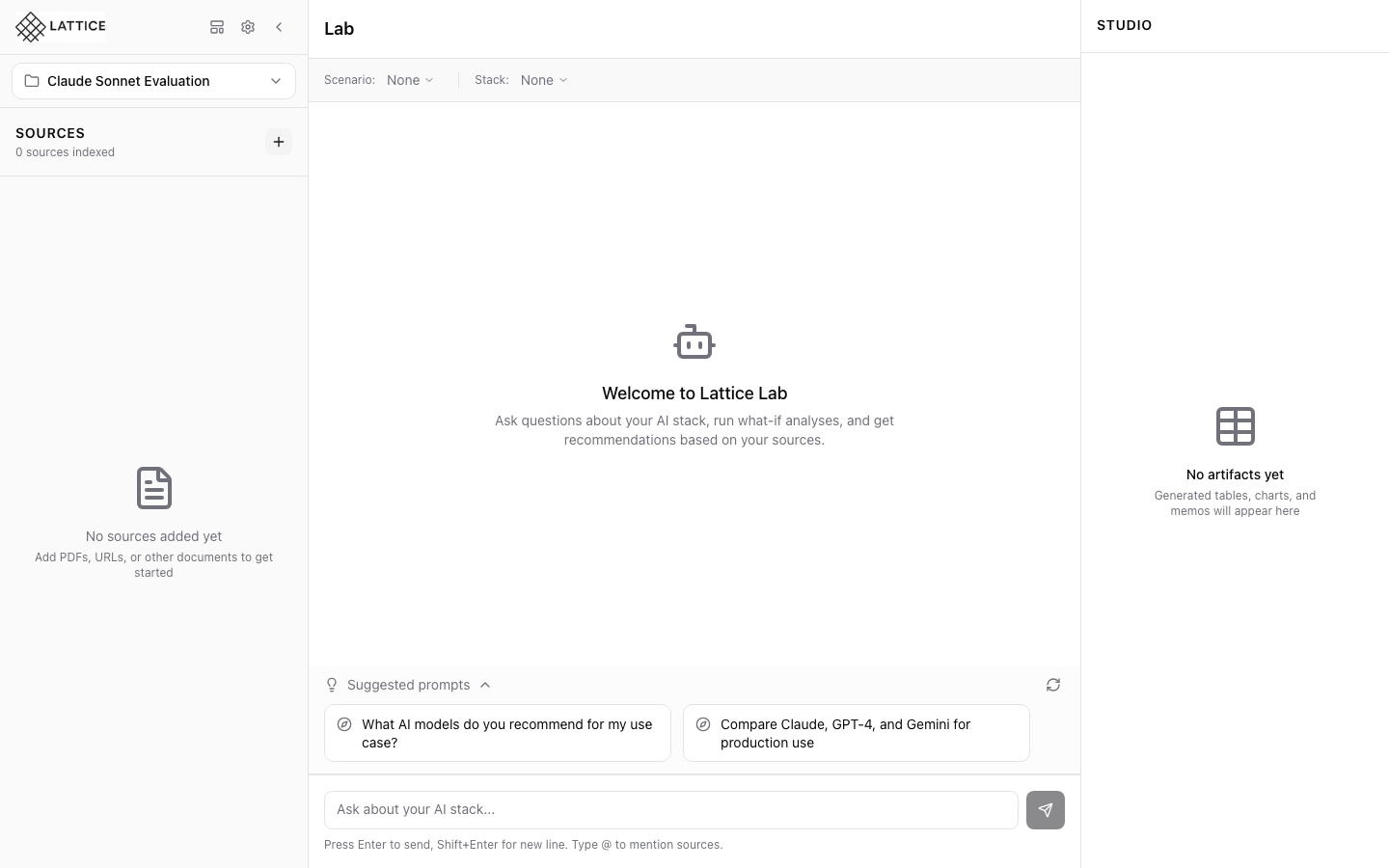
When I need to work on a different project, I want to switch workspaces, so I can access that project’s sources and context.
Introduction
Workspaces keep your research projects separate. Each workspace has its own sources, scenarios, stacks, and conversation history. Switching between them is instant.
Switching Workspaces
- Click the workspace selector at the top of the Sources panel
- View all available workspaces with their stats
- Click any workspace to switch
Workspace Information
Each workspace entry shows:
- Name — The workspace identifier
- Source count — Number of indexed documents
- Message count — Conversation history length
Context Preservation
When you switch workspaces:
- Previous workspace state is preserved
- New workspace loads with its own context
- Suggested prompts update for the new context
Use Cases
- Keep different vendor evaluations separate
- Maintain distinct projects for different teams
- Archive completed research while starting new
Next steps: Create a new workspace for your next project.
Ready to Try Lattice?
Get lifetime access to Lattice for confident AI infrastructure decisions.
Get Lattice for $99