
Configuring Multi-Node Training
When I have a GPU cluster allocated for training, I want to configure optimal parallelism settings, so I can maximize throughput and avoid wasting expensive compute time on misconfiguration.
The Challenge
Your cluster allocation came through: 32 H100 GPUs across 4 nodes, reserved for the next two weeks to train a 70B model. The clock is ticking - every hour of misconfiguration is an hour you don’t get back. But before you can start training, you need to answer questions that have no obvious answers.
Should you use Tensor Parallelism of 4 or 8? Does Pipeline Parallelism make sense with NVLink nodes? What ZeRO stage balances memory and communication? The wrong choices don’t just slow training - they can make it impossible.
The Starting Point: Your Training Setup
You’re configuring training for:
- Model: Llama 3 70B (70 billion parameters)
- Hardware: 32 H100 80GB GPUs across 4 nodes (8 GPUs per node)
- Interconnect: InfiniBand between nodes, NVLink within nodes
- Sequence Length: 8192 tokens
- Target: Pre-training on 100B tokens
Step 1: Input Your Configuration
Open the Parallelism Advisor from the Tools section in the Studio panel.
Enter model specifications:
- Set Model Size to
70(billions of parameters)
Enter hardware specifications:
- Set GPU Count to
32 - Set GPU Memory to
80GB - Set GPUs per Node to
8
Enter training parameters:
- Set Sequence Length to
8192 - Set Batch Size per GPU to
4(micro-batch) - Select Interconnect as
InfiniBand - Select Training Type as
Pre-training
Click Get Recommendations to run the advisor.
Step 2: Understand the Recommendation
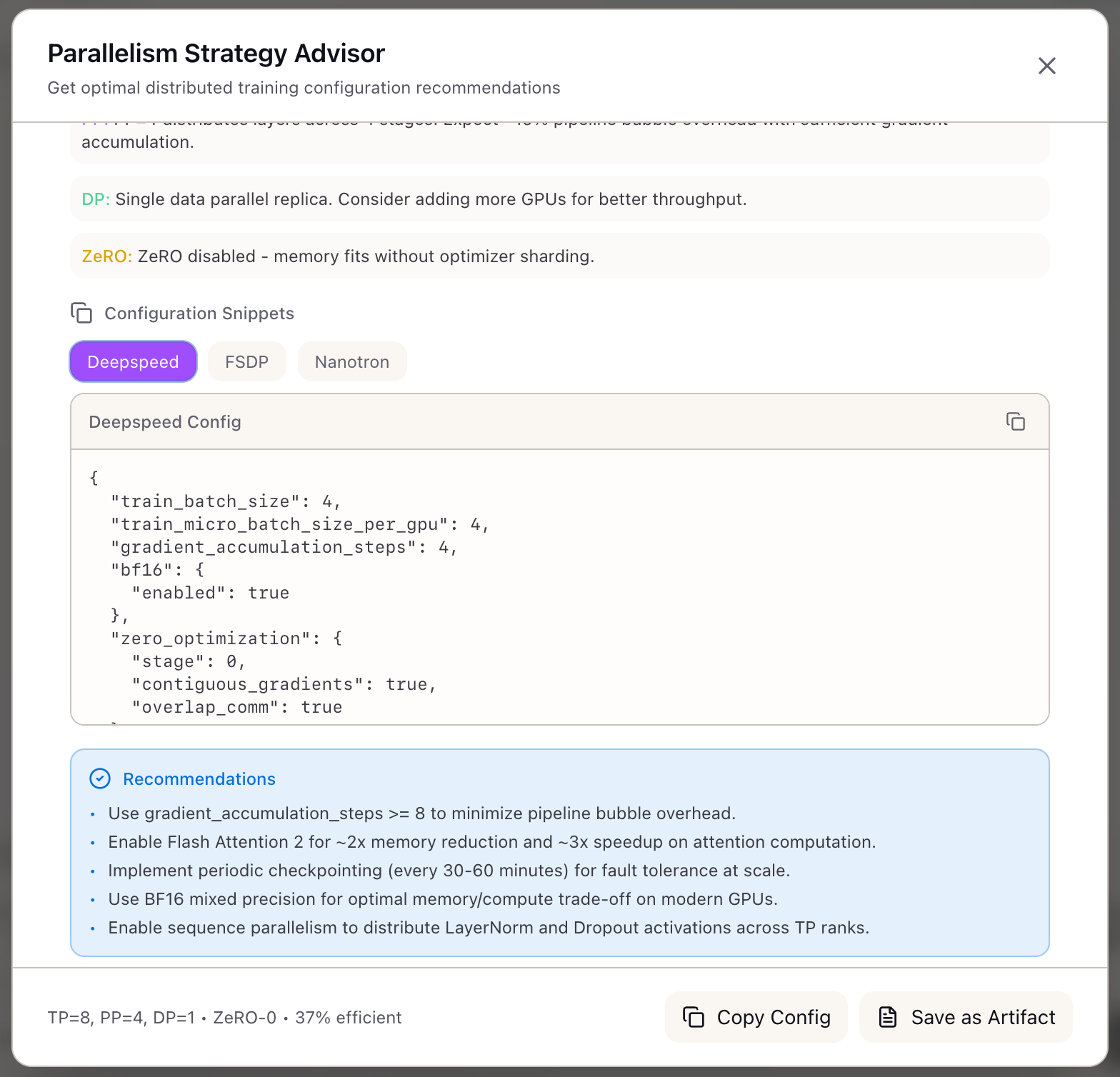
The advisor returns its recommendation:
Tensor Parallelism (TP): 8Pipeline Parallelism (PP): 4Data Parallelism (DP): 1ZeRO Stage: 1Sequence Parallelism (SP): EnabledWhat the numbers mean:
-
TP=8: The model is split across all 8 GPUs within each node. NVLink handles the AllReduce operations efficiently.
-
PP=4: The model’s 80 layers are divided into 4 pipeline stages (20 layers each). Each stage runs on one node.
-
DP=1: With TP=8 and PP=4, all 32 GPUs are used (8 x 4 = 32). To increase effective batch size, use gradient accumulation.
-
ZeRO-1: Optimizer states are sharded across the DP dimension. Since DP=1, this prepares for future scaling.
-
SP=Enabled: Sequence Parallelism shards LayerNorm and Dropout activations across TP ranks.
Step 3: Review the Rationale
The advisor explains each decision:
Why TP=8:
“Model requires TP=8 to fit within GPU memory constraints. 70B model at BF16 precision requires ~140GB for parameters alone. TP=8 reduces per-GPU parameter memory to ~17.5GB.”
Why PP=4:
“Multi-node training with 32 GPUs across 4 nodes. TP=8 uses all GPUs within a single node. PP=4 distributes layers across nodes using InfiniBand for activation transfers.”
Why DP=1:
“With TP=8 x PP=4 = 32 GPUs, no GPUs remain for data parallelism. Use gradient accumulation to increase effective batch size.”
Step 4: Analyze the Trade-offs
The advisor quantifies the performance implications:
| Metric | Value | Interpretation |
|---|---|---|
| Memory per GPU | 67.2 GB | 84% of 80GB H100 - good headroom |
| Communication Overhead | 12.3% | Time spent in NCCL collectives |
| Pipeline Bubble | 6.25% | Throughput lost to PP stage imbalance |
| Scaling Efficiency | 81.4% | Effective utilization of GPU compute |
| Expected Throughput | 45,000 tok/s | Training tokens per second |
Reading the metrics:
- Memory 67.2 GB: Leaves 12.8 GB headroom for activation spikes. Safe margin.
- Communication 12.3%: Tensor parallelism requires AllReduce after each layer. NVLink makes this fast but not free.
- Pipeline Bubble 6.25%: With PP=4 and sufficient micro-batches, bubbles are manageable.
- Scaling Efficiency 81.4%: You’re getting 81% of ideal linear scaling. Good for 70B scale.
Step 5: Export Framework Configurations
Once satisfied with the recommendation, export configurations for your training framework.
DeepSpeed Config:
{ "train_batch_size": 128, "train_micro_batch_size_per_gpu": 4, "gradient_accumulation_steps": 32, "zero_optimization": { "stage": 1, "reduce_scatter": true, "contiguous_gradients": true, "overlap_comm": true }, "bf16": { "enabled": true }}Nanotron Config:
parallelism:  tp: 8  pp: 4  dp: 1  cp: 1  sp: true
training:  micro_batch_size: 4  sequence_length: 8192  gradient_accumulation_steps: 32
Step 6: Validate with Memory Calculator
Before committing to training, cross-check with the Memory Calculator:
- Open Memory Calculator
- Select
llama-3-70bpreset - Set batch size to 4, sequence length to 8192
- Set TP=8, PP=4, ZeRO=1
- Verify peak memory aligns with Parallelism Advisor’s estimate
Both tools should confirm you have safe memory headroom.
Real-World Patterns
Pattern: Scaling Up to More GPUs
When your cluster grows from 32 to 64 GPUs:
- Keep TP=8 (stays within node)
- PP=4 (still 4 nodes per replica)
- DP increases to 2 (two full model replicas)
- ZeRO-1 now shards optimizer across 2 ranks
Pattern: Debugging Slow Training
If training throughput is lower than expected:
- Check pipeline bubble percentage - high bubbles indicate PP is too aggressive
- Check communication overhead - high overhead suggests interconnect bottleneck
- Consider reducing PP and increasing DP if InfiniBand bandwidth allows
Pattern: Memory Pressure Issues
If you’re hitting OOM despite advisor recommendations:
- Enable activation checkpointing (not included in baseline)
- Reduce micro-batch size from 4 to 2
- Consider ZeRO-3 to shard parameters (adds communication overhead)
What You’ve Accomplished
You now have a systematic approach to multi-node training configuration:
- Input your cluster topology and get optimal parallelism settings
- Understand the rationale behind each recommendation
- Quantify trade-offs before committing GPU hours
- Export ready-to-use configs for DeepSpeed, FSDP, and Nanotron
What’s Next
The parallelism configuration flows into other Lattice tools:
- Training Scenarios: Save your TP/PP/DP configuration as part of a training scenario
- TCO Calculator: Use scaling efficiency to estimate training costs
- Memory Calculator: Detailed memory breakdown for the chosen parallelism
- Framework Configs: Export ready-to-use configs for your framework
The Parallelism Advisor is available in Lattice. Configure distributed training with confidence.
Ready to Try Lattice?
Get lifetime access to Lattice for confident AI infrastructure decisions.
Get Lattice for $99