
Quantizing Llama 70B for Production
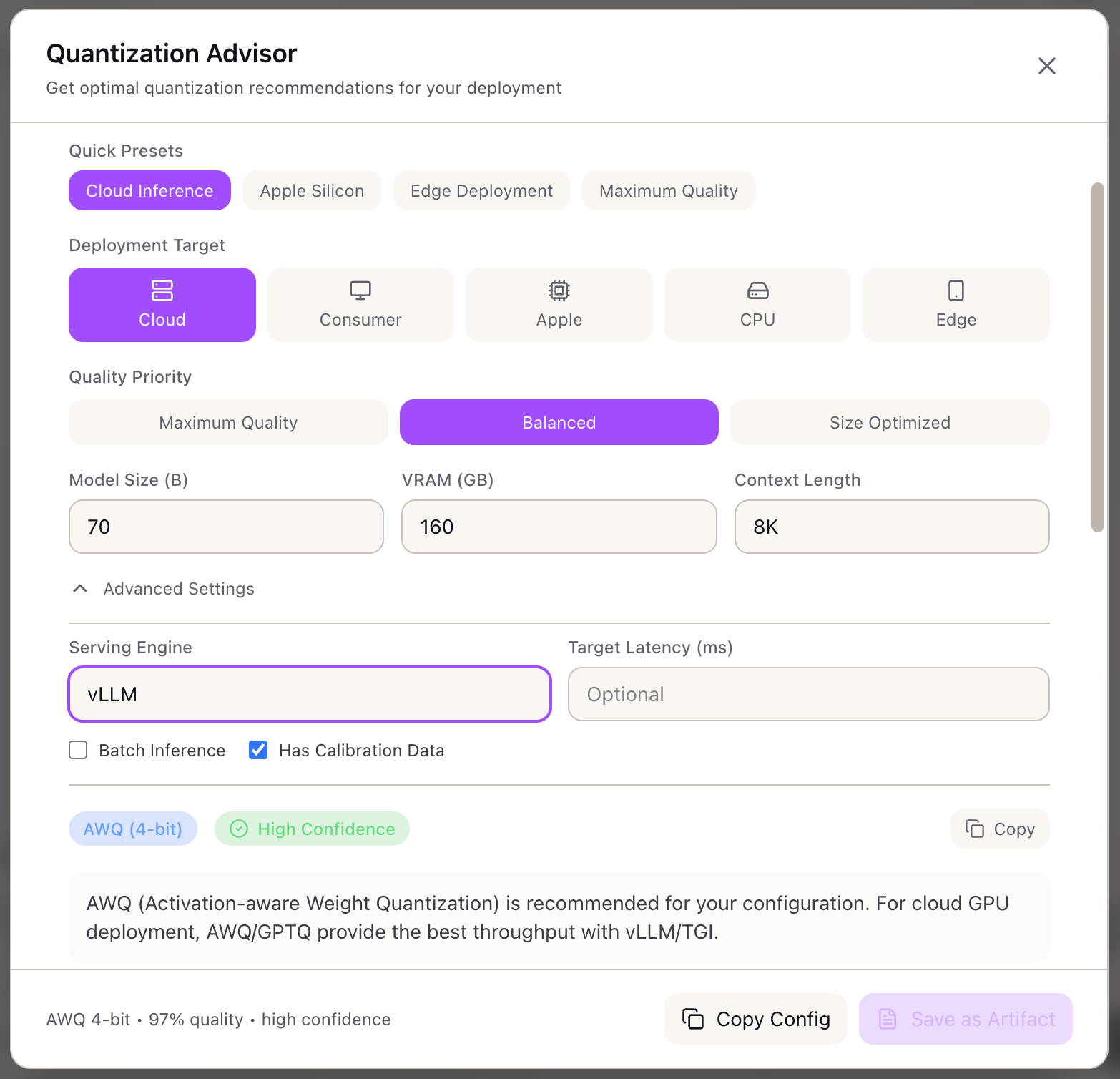
When I need to deploy a 70B model on available GPU infrastructure, I want to configure the optimal quantization method, so I can fit the model in memory while maintaining quality for production use.
The Challenge
Your inference prototype works great with the full FP16 Llama 70B model—on a single H100 with 80GB VRAM. Now you need to deploy to production where you have 4x A100 40GB GPUs available. The math doesn’t work: 140GB model doesn’t fit in 160GB total VRAM, especially after accounting for KV cache and activation memory.
Quantization is the obvious solution. But which method? AWQ, GPTQ, and GGUF all promise 4x compression. The blog posts say AWQ has better quality, but your vLLM deployment needs specific format support. You could spend a week testing each option, running calibration, benchmarking quality—or you could systematically evaluate the options upfront.
This walkthrough shows how to use the Quantization Advisor to select the optimal method for deploying Llama 70B on A100 40GB GPUs with vLLM, from initial requirements through calibration configuration.
The Starting Point: Your Deployment Constraints
You’re deploying a RAG-based question answering system:
- Model: Llama 70B (requires 140GB in FP16)
- Hardware: 4x A100 40GB (160GB total VRAM)
- Serving Engine: vLLM with tensor parallelism
- Context Length: 8K tokens (moderate KV cache)
- Quality Requirement: Must maintain answer accuracy on your benchmark
- Throughput Target: 100 requests/minute at P95 < 2 seconds
Your goal: fit the model in available VRAM while maintaining quality.
Step 1: Configure Deployment Target
Open the Quantization Advisor from the Tools section (Inference category) in the Studio panel.
Select your deployment target:
- Click Cloud GPU in the deployment target selector
- This filters recommendations to methods that work well with datacenter GPUs
Why Cloud GPU?
Cloud GPU targets (A100, H100, L40S) support:- AWQ: Best 4-bit quality, vLLM native support- GPTQ: Mature tooling, multiple bit widths- FP8: Maximum quality on H100/Ada GPUs- INT8: Wide compatibility
Apple Silicon/CPU targets would recommend GGUF instead.
Step 2: Set Quality Priority
Select your quality/size trade-off:
- Click Balanced in the quality priority selector
Why Balanced?
Your RAG system requires accurate answers—maximum compression(2-3 bit) might degrade quality noticeably. But you don't need99.5% retention either. Balanced (4-5 bit) provides:- 95-98% quality retention- 4x memory reduction- 1.5x inference speedupStep 3: Configure Model Parameters
Enter your model configuration:
- Set Model Size to
70(billions of parameters) - Set Available VRAM to
160(total across 4x A100 40GB) - Set Context Length to
8192
Step 4: Configure Advanced Settings
Expand Advanced Settings to specify your serving engine:
Set serving engine:
- Select vLLM from the serving engine dropdown
Why does serving engine matter?
vLLM supports: AWQ, GPTQ, FP8TGI supports: AWQ, GPTQOllama requires: GGUFTensorRT-LLM supports: FP8, INT8
Selecting vLLM filters out incompatible methods like GGUF.
Step 5: Review the Primary Recommendation
The advisor returns:
Method: AWQ (4-bit) Confidence: High
Performance Estimates:- Quality Retention: 97%- Memory Savings: 75%- Speedup Factor: 1.5x- Projected Throughput: 50 tokens/sec per GPU
Memory Analysis:- Model Size: 17.5 GB (vs 140 GB FP16)- KV Cache per 1K: 0.5 GB- Peak Memory: 22.3 GB per GPU with TP=4- Fits in 40 GB: Yes
Why AWQ?
For cloud GPU + vLLM + balanced quality:1. AWQ provides best quality retention at 4-bit2. Native vLLM support with optimized kernels3. GEMM variant for best throughput4. Well-established calibration processStep 6: Understand Memory Breakdown
Per-GPU Memory (with TP=4):
| Component | Size |
|---|---|
| Model Weights | 4.4 GB |
| KV Cache (8K context) | 4.0 GB |
| Activations | 2.0 GB |
| CUDA Overhead | 1.5 GB |
| Total | 11.9 GB |
Headroom:
Available: 40 GBRequired: 11.9 GBHeadroom: 28.1 GB (70%)
This headroom allows for:- Longer context (up to 32K)- Larger batch sizes for throughput- Concurrent request handling
Step 7: Review Calibration Requirements
AWQ requires calibration. The advisor provides guidance:
Calibration Configuration:
Samples Needed: 128Estimated Time: ~15 minutes on A100
Representative Data:Use domain-specific prompts that match your productiontraffic distribution. For RAG Q&A:- Include questions at various lengths- Cover your document domains- Include both factual and reasoning queries
Step 8: Review Alternatives
| Method | Quality | Speedup | Memory | Trade-off |
|---|---|---|---|---|
| AWQ 4-bit | 97% | 1.5x | 75% | Recommended |
| GPTQ 4-bit | 96% | 1.5x | 75% | Slightly lower quality |
| FP8 | 99.5% | 1.3x | 50% | Higher quality, less compression |
When to consider alternatives:
- GPTQ: If you don’t have calibration data (can use generic calibration)
- FP8: If you upgrade to H100 and prioritize maximum quality
Step 9: Export Configuration
Save as Artifact:
- Click Save as Artifact to capture the recommendation
The artifact includes configuration, recommendation, and vLLM configuration code.
Step 10: Implement the Quantization
With your recommendation, implement the quantization:
1. Prepare calibration data:
# Sample 128 representative queries from production logscalibration_data = load_production_queries(limit=128)
# Format for AWQ calibrationcalibration_samples = [    {"text": query} for query in calibration_data]
2. Run AWQ quantization:
# Using AutoAWQpython -m awq.entry --model_path meta-llama/Llama-2-70b-hf \ --w_bit 4 \ --q_group_size 128 \ --calib_data calibration_samples.json \ --output_path ./llama-70b-awq3. Deploy with vLLM:
from vllm import LLM, SamplingParams
# Load quantized modelllm = LLM(    model="./llama-70b-awq",    quantization="awq",    tensor_parallel_size=4,    gpu_memory_utilization=0.9,)
Real-World Patterns
Pattern: Upgrading Hardware Later
If you later upgrade to H100:
- Re-run the advisor with 80GB VRAM
- Consider FP8 for 99.5% quality (native H100 support)
- Or keep AWQ and use the headroom for larger batches
Pattern: Consumer GPU Deployment
For RTX 4090 deployment:
- Change deployment target to “Consumer GPU”
- Advisor still recommends AWQ (CUDA compatible)
- Memory constraints are tighter (24GB)—may need 3-bit for 70B
Pattern: Apple Silicon Deployment
For M2 Ultra Mac Studio:
- Change deployment target to “Apple Silicon”
- Advisor recommends GGUF (Metal optimized)
- Use Q4_K_M variant for balanced quality
What You’ve Accomplished
You now have a production-ready quantization configuration:
- Selected AWQ 4-bit for 97% quality retention
- Verified model fits in 4x A100 40GB with headroom
- Configured calibration with domain-specific data
- Exported vLLM configuration for deployment
What’s Next
Your quantization configuration flows into other Lattice tools:
- Serving Engine Advisor: Get vLLM configurations tuned for your quantized model
- Memory Calculator: Verify memory requirements with different batch sizes
- TCO Calculator: Factor quantization into cost analysis (more throughput per GPU)
- Stack Configuration: Apply quantization settings to your inference stack
Quantization Advisor is available in Lattice. Deploy large models on smaller hardware without quality compromise.
Ready to Try Lattice?
Get lifetime access to Lattice for confident AI infrastructure decisions.
Get Lattice for $99